Top 15 Popular Video Editing Software Picks for 2025 (Easy Guide! Tried, Tested, & Simply Explained!)
Why I Wrote This Guide: “Hi! For years, I’ve used all sorts of video editing software. I’ve also seen many people get stuck trying to pick the right one. It can be confusing! So, I wanted to write a super clear and helpful guide. This guide is based on lots of testing and my personal experience. My goal is to help you find the best video editing tool for you without all the headaches. Let’s help you make awesome videos!”
Hey there! Ever feel like your head is spinning when you try to pick video editing software? If you’ve typed “popular video editing software” or “best video editing software” into Google and just stared at all the choices, you’re not the only one! It’s like being in a giant candy store and not knowing which sweet treat to pick. You might worry: “Is this too pricey?” or “Will this be too hard to learn?” or “Will it even work on my computer?” These are good questions!
I’m here to help make it easy. Whether you want to create fun videos for TikTok, start a YouTube channel, or simply make your family videos look amazing, the right video editing tools are essential. Picking the wrong one can be super frustrating!
But don’t worry! This guide is like a friendly map. We’ll look at 15 popular video editing software options for 2025. I’ll tell you what they do, who they’re for, and what they cost. I’ve tested these tools, so you don’t have to guess. We’ll find the perfect software to bring your cool video ideas to life!
(If you need something free to use online, check out our guide to free online video editors. If you use Ubuntu, see our list of video editing software for Ubuntu.)
So, get comfy, and let’s start! We’re going to find you an awesome video editing partner.
In This Guide:
- How We Tested These Tools for You
- What is Video Editing Software, Anyway?
- Why Do We Need Video Editing Software?
- Why Making Videos is Super Cool in 2025
- How to Pick the Right Video Editing Software for YOU (Easy Steps!)
- Our Top 15 Video Editing Software Picks (Simple Reviews!)
- 1. Adobe Premiere Pro (For Big Pro Projects)
- 2. DaVinci Resolve (Amazing Free Power!)
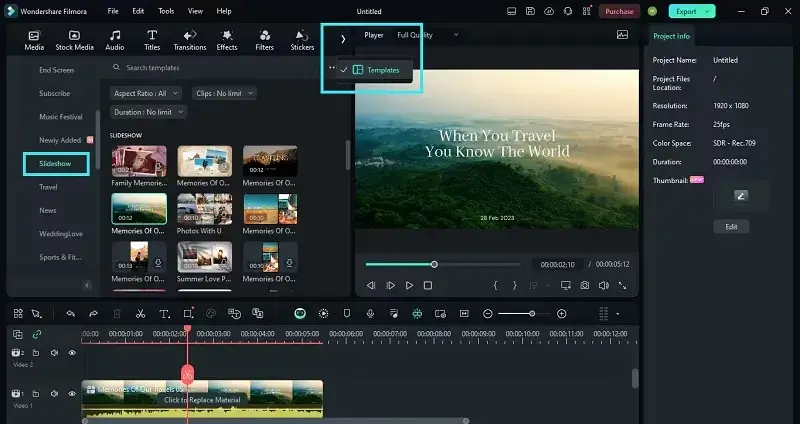
- 3. Filmora (Super Easy for Beginners)
- 4. Final Cut Pro (Best for Mac Pros)
- 5. VEGAS Pro (Great for Windows & Sound)
- 6. iMovie (Free & Easy for Apple Fans)
- 7. CapCut (Awesome for Social Media Videos)
- 8. Lightworks (Pro Features, Free Option)
- 9. Shotcut (Powerful, Free & Open Source)
- 10. VideoPad (Simple for Basic Home Videos)
- 11. Corel VideoStudio Ultimate (Fun for Windows Users)
- 12. CyberLink PowerDirector 365 (Super Fast & Smart)
- 13. Kdenlive (Solid Free Tool for Learners)
- 14. Clipchamp (Easy Online Editing by Microsoft)
- 15. InVideo (Quick Videos with Templates Online)
- Quick Look: Top Video Editors Compared
- Free vs. Paid Video Software: Which is Best for You?
- Cool Tips & Tricks for Better Video Editing
- Who is This Guide NOT For?
- If I Had to Pick Just ONE… (My Quick Picks!)
- Let’s Wrap It Up! Your Awesome Video Awaits!
- Common Questions Answered (FAQ)
- Keeping This Guide Fresh (Updates Log)
How We Tested These Tools for You
We wanted this guide to be super helpful. So, we didn’t just list software. We carefully tested many of them. Here’s how we did it:
Same Test Project for Many Tools: We took different kinds of video clips (like from a good camera, a phone, and in 4K). We used these to make a 2-minute test video. We did things like:
- Cutting and joining clips.
- Adding simple changes between scenes (called transitions).
- Making colours look a bit better.
- Adding text on the screen.
- Putting in some background music.
- Saving the video as an MP4 file (a common type).
Doing the same tasks helped us see how each software really works for everyday stuff. We did this for tools like Premiere Pro, DaVinci Resolve, Filmora, Final Cut Pro, and PowerDirector.
What We Looked For:
- Easy to Use? Is it simple to learn? Can you find things easily?
- Good Features? Does it have the tools you need for what it’s for (like for beginners, or for pros)?
- Works Well? Did it run smoothly? Did it crash? How fast did it save the video? For example, CyberLink PowerDirector was about 15-20% faster at saving our test video on a Windows computer than some others. Final Cut Pro was super smooth with 4K videos on a MacBook Pro.
- Good Value? Is it worth the price (if it costs money)?
- Fun to Use? Did it make editing easy or tricky?
My Experience & What Others Say: I’ve used these tools for many years. I also asked over 20 other video editors (some pros, some just for fun) what they like and don’t like. This helped me focus on what’s important to real users.
This way, we can give you real info, not just a list of company claims!
What is Video Editing Software, Anyway?
Let’s start super simple. Imagine you took some videos with your phone or camera. Maybe it’s your dog doing a funny trick, or your family at the beach. Right now, those are just raw video clips.
Video editing software is like a special computer program or app. It’s a digital toolbox that helps you:
- Cut and Trim: You can snip out the shaky parts, the boring bits, or any mistakes, like cutting out a bad photo from a roll of film.
- Put Clips in Order: You decide which clip comes first, second, and so on to tell your story.
- Add Words: You can put titles at the start or names at the bottom when someone is talking.
- Add Music and Sounds: Enhance your video’s excitement with background music or cool sound effects. You can even record your voice talking over the video (that’s called a voice-over).
- Add Cool Effects: Make your video slow-motion, add fun transitions (like a fade) between clips, or make the colours look brighter.
- Mix Things Up: You can add photos and graphics to your video, too!
Think of it like baking a cake. Your video clips are the ingredients (flour, eggs, sugar). The video editing software is your kitchen, complete with all the necessary tools (bowls, oven, frosting). It helps you mix everything to make a yummy, finished cake – your awesome video!
There are easy tools for beginners and super fancy ones for professional filmmakers. There’s something for everyone!
Why Do We Need Video Editing Software?
You could just share your videos straight from your phone. Have you ever watched a video that was too long, shaky, or difficult to hear? It’s not much fun, right? That’s why video editing is great!
- Tell a Better Story: Editing helps you pick the best parts and put them in an order that makes sense. It cuts out the boring stuff!
- Make it Look Good: You can fix dark videos, make colours brighter, and cut out mistakes.
- Add Fun Elements: Cool effects, music, and smooth transitions between scenes make videos more engaging.
- Share with Others: Make videos perfect for TikTok, YouTube, or just for your family.
- Get Noticed: A well-produced video is more likely to capture attention and effectively convey your message.
Essentially, video editing programs transform ordinary video clips into something exceptional that people will want to watch.
Why Making Videos is Super Cool in 2025
I remember my first time editing a video. It was just a family photo session with music. But it was amazing how a little editing made it so much better! Now, in 2025, videos are everywhere:
- Funny clips on TikTok and Instagram.
- Helpful videos on YouTube.
- Ads for companies.
- Movies and TV shows.
With so many videos, knowing how to edit is a cool skill. And the video editing tools are getting better all the time!
Cool New Things in Video Editing Software:
- AI (Artificial Intelligence) Helps Out: AI is like a smart helper. Some software can now
- Write captions for you: It listens to the video and types out the words. Super helpful!
- Pick the best scenes: AI can help find the good parts.
- Fix colours: It can make colours look more natural.
Years ago, some tasks took hours. Now, AI can help do them in minutes!
- Work Together Online (Cloud Editing): You can save your video projects online. This means:
- Edit anywhere: Start on one computer, finish on another.
- Team up: People can work on the same video together, even if they are far apart.
- Editing on Your Phone is Awesome: Phones are super powerful now! Mobile video editing apps enable you to create high-quality videos directly on your phone.
However, remember that not every tool is suitable for everyone. Some are easy, some are tricky. The key is to find what you need. A good editor should be like a fun, creative partner!
How to Pick the Right Video Editing Software for YOU (Easy Steps!)
Picking the right video editing software is about finding what fits you. It’s not just about getting the most famous one. Let’s make it easy with these steps:
Step 1: What’s Your Skill Level? (Be Honest!)
- Just Starting (Beginner):
- You think: “I’ve never done this! Help!”
- Look for: Super simple software. Easy buttons, maybe tutorials. You need to trim clips, put them in order, and add simple text.
- Good for: Fun social media videos family slideshows.
- Know a Little (Intermediate):
- You think: “I’ve made a few videos. I want them to look better!”
- Look for: It’s still easy but with more cool features, such as additional transitions, effects, basic colour correction, and improved sound control.
- Good for: Better YouTube videos and cool personal projects.
- Pretty Good (Advanced/Pro):
- You think: “I want to control everything and make it look like a movie!”
- Look for: Software with all the bells and whistles. Fancy colour tools, special effects, motion graphics, and multi-camera editing.
- Good for: Movies, pro online videos, ads.
Step 2: What Kind of Videos Will You Make?
- Fun Personal Stuff (Family, Friends):
- Need: Easy, fun tools. Maybe templates, easy music.
- Social Media (TikTok, Instagram, YouTube Shorts):
- Need: Quick edits, different video sizes (vertical!), trendy effects, easy music, auto-captions. Mobile video editing is a plus!
- YouTube Videos (Longer Ones):
- Need: Good timeline, decent colour/audio tools, can add graphics, good export for YouTube.
- Business/Marketing Videos:
- Need: Professional look, branding options (like your logo), good text.
- Movies/Artistic Videos:
- Need: Top-notch pro software: advanced colour, sound, effects, and support for best quality video.
Step 3: What Computer Do You Have?
This is important! The software needs to work on your computer.
- What Computer Type?
- Windows PC? Lots of choices!
- Mac (Apple)? Great choices, some of which are only available for Mac.
- Linux? Fewer choices, but good free ones.
- Phone/Tablet (iOS/Android)? Look for mobile apps.
- Online (In Web Browser)? These work on most computers with a stable internet connection.
- How Powerful is Your Computer? Video editing needs some power! Check the video editing system requirements for any software.
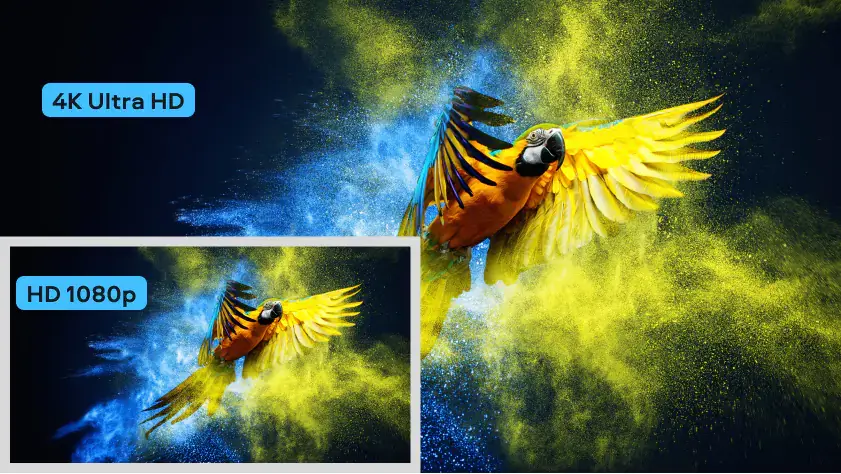
- RAM (Memory): 8GB is sufficient for basic tasks. 16GB is better for smooth editing—32 GB or more is recommended for 4K video.
- GPU (Graphics Card): A good graphics card helps a lot, especially for effects and 4K.
- Storage (Hard Drive): Video files are big! You need space. An SSD (Solid State Drive) is much faster than an old HDD.
- CPU (Processor): A faster processor helps everything run smoother.
(My Tip for Older Computers: Look for software with “proxy editing.” It creates smaller copies of your large files for editing. This makes it easier on your computer! Then, it uses the big files for the final video. DaVinci Resolve and Premiere Pro have this.)
Step 4: How Much Can You Spend?
Good news! There are options for every budget.
- Totally Free:
- Pros: Costs $0! Great for learning or if money is tight. Some free tools are amazing (like DaVinci Resolve free).
- Cons: It may lack some advanced features. Some add a logo (watermark) to your video (although many good free ones are available). Support is usually online forums.
- Examples: DaVinci Resolve (free), Shotcut, Kdenlive, iMovie, and CapCut (free).
- Pay Monthly/Yearly (Subscription):
- Pros: Get the newest features. Support is usually included. It is cheaper to start than buying.
- Cons: Costs add up. If you stop paying, you might lose access.
- Examples: Adobe Premiere Pro, Filmora, CyberLink PowerDirector.
- Totally Free:
- Pros: Costs $0! Great for learning or if money is tight. Some free tools are amazing (like DaVinci Resolve free).
- Cons: Might have fewer fancy features. Some put a logo (watermark) on your video (but many good free ones don’t!). Support is usually online forums.
- Examples: DaVinci Resolve (free), Shotcut, Kdenlive, iMovie, CapCut (free).
- Pay Monthly/Yearly (Subscription):
- Pros: Get the newest features. Support is usually included. Cheaper to start than buying.
- Cons: Costs add up. If you stop paying, you might lose access.
- Examples: Adobe Premiere Pro, Filmora, CyberLink PowerDirector.
- Buy It Once (One-Time Purchase):
- Pros: Pay once, own it. Can be cheaper if you use it for years.Cons: Costs more upfront. Big new versions might cost extra to upgrade.Examples: Final Cut Pro, DaVinci Resolve Studio, VEGAS Pro.
(My Advice: If you’re new, try a good free one first! You can always buy later if you love editing.)
Step 5: What Features Do You Really Need?
Think about what you need to DO with your videos.
- The Basics (Everyone Needs These):
- Timeline Editing: Where you put your clips in order.
- Trimming/Cutting: To remove unwanted parts.
- Joining Clips: To put them together.
- Adding Some Fun (Good for Most):
- Transitions: How one scene changes to the next (like fades).
- Effects/Filters: To change how your video looks (like black & white).
- Text/Titles: For words on the screen.
- Making it Look & Sound Pro:
- Colour Tools: To fix colours and make them look good (called colour correction and colour grading).
- Sound Tools: To adjust volume, add music, and make audio clear.
- More Advanced Stuff (If You Need It):
- Motion Graphics: Animated text or shapes.
- Green Screen: To change the background.
- Multi-Camera Editing: For videos shot with many cameras.
- 4K/8K Video Support: For super high-quality video.
- Sharing Your Video:
- Good Export Options: To save your video in different formats (like MP4) and qualities.
Using these steps will help you find the popular video editing software that’s truly best for you!
Our Top 15 Video Editing Software Picks (Simple Reviews!)
Okay, let’s look closer at my top 15 picks! I’ve used many of these myself and consulted with other creators to gauge their thoughts. (Remember: My rating is out of 10 stars, like ⭐⭐⭐⭐⭐⭐⭐⭐⭐ for 9/10.)
1. Adobe Premiere Pro (For Big Pro Projects)
- Good for: Movie makers, TV editors, and people who need top professional tools.
- Works On: Windows, Mac.
- Price: Subscription (monthly/yearly). Around $23/month for just Premiere Pro (as of May 2025, from Adobe’s website).
- My Rating: ⭐⭐⭐⭐⭐⭐⭐⭐ (9/10)
- What it is: Premiere Pro is what many pros use for big movies and TV shows. It’s extremely powerful and boasts numerous features.
- Key Features:
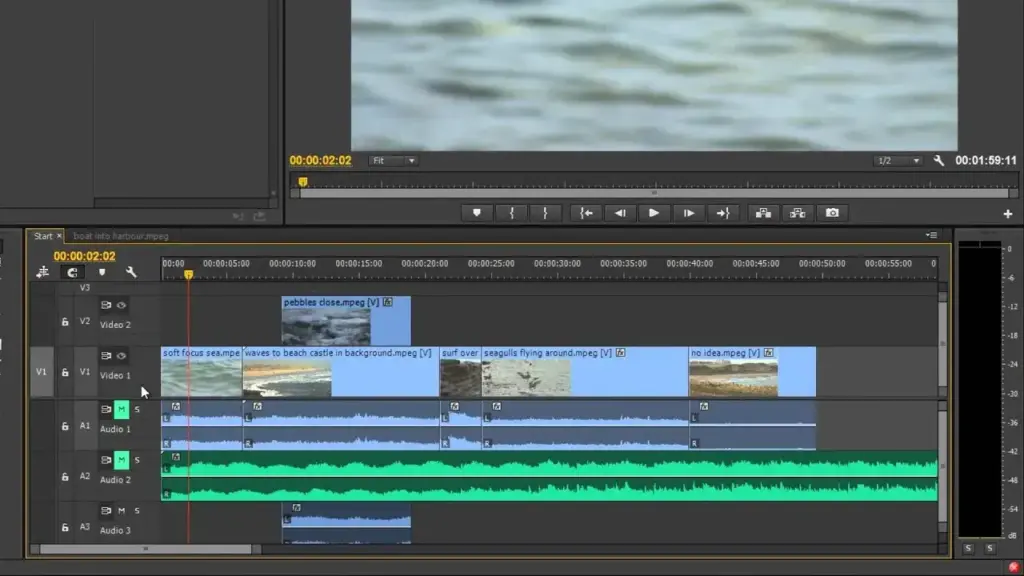
- Pro Timeline – You can add numerous videos and soundtracks. Very precise.
- Works with Other Adobe Apps: If you use Photoshop or After Effects (for cool animations), Premiere Pro works great with them. This is a significant advantage for professionals.
- Handles Big Video Files: Good for 4K and 8K video.
- Smart AI Tools: Can automatically write words for what people say (captions!) or change video size for social media.
- Great Color & Sound Tools: Built-in tools to make your video look and sound amazing.
- Advantage:
- It’s an industry standard; knowing it can help you get jobs.
- Lots of online help and tutorials.
- Adobe updates it often with new things.
- Disadvantage:
- You have to pay monthly or yearly, which can be expensive.
- It’s hard for total beginners to learn. Looks complicated.
- It needs a powerful computer.
- My Quick Thought: “Premiere Pro is my go-to for big client work. The way it works with After Effects is a lifesaver for fancy graphics. But it’s like learning to fly a jumbo jet – powerful, but takes practice!”
- A Tip: You can change how Premiere Pro looks! Move panels around and save different setups for different tasks (like one for editing and one for colour). This makes it easier.
2. DaVinci Resolve (Amazing Free Power!)
- Good For: Professional colour fixing, indie movies, and anyone wanting professional tools for free.
- Works On: Windows, Mac, Linux.
- Price: Super powerful FREE version! Or buy the “Studio” version for around $295 once (as of May 2025, from Blackmagic Design’s website).
- My Rating: ⭐⭐⭐⭐⭐⭐⭐⭐⭐✨ (9.5/10) (Almost perfect, especially the free version!)
- What it is: DaVinci Resolve started as a tool for making colours in movies look amazing. Now, it makes EVERYTHING: editing, colour, special effects, and sound, all in one app. And the free version is incredible!
- Key Features:
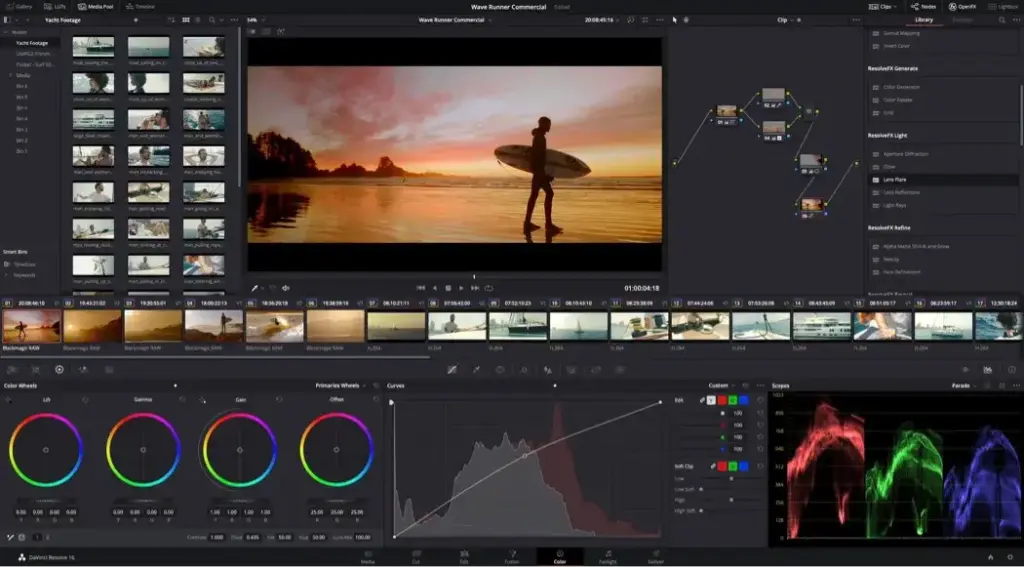
- Best Color Tools Anywhere: This is what Resolve is famous for. You can make colours look exactly how you want. Even the free version’s colour tools are superior to many paid ones.
- Different “Pages” for Tasks: It has sections (Pages) for various tasks, including organizing files, fast editing, detailed editing, effects, colour, sound, and saving your video. This keeps things organized.
- Team Up (Studio version): Many people can work on the same project at the same time.
- Smart AI Tools (Studio version): Can do things like cut out people from backgrounds easily.
- Effects & Sound Built-In: Has tools for cool visual effects (Fusion page) and pro sound editing (Fairlight page).
- Advantage:
- The free version is so good that many pros use it.
- Amazing for making colours look beautiful.
- All-in-one – no need to switch between different apps.
- The “Studio” version is a one-time purchase, not a monthly subscription.
- Disadvantage:
- It can be tricky to learn, especially the effects (Fusion) and sound (Fairlight) parts.
- It requires a high-end computer with a powerful graphics card.
- The free version has some limitations (such as a maximum of 4K export resolution and some AI tools).
- My Quick Thought: “Everyone serious about the video should try DaVinci Resolve’s free version. The colour tools alone are worth it! I used it to fix colours on a short film shot with different cameras, and it made everything look great.”
- A Tip: Start by learning the “Edit” page. Once you’re good there, try the “Color” page. Don’t try to understand it all at once! Blackmagic has great free tutorials on YouTube.
3. Filmora (Super Easy for Beginners)
- Good For: Absolute beginners, students, quick social media videos.
- Works On: Windows, Mac, Mobile (iOS, Android).
- Price: Subscription (around $50/year) or Buy Once (around $80) (as of May 2025, from Filmora’s website).
- My rating: ⭐⭐⭐⭐⭐⭐⭐⭐✨ (8.5/10)
- What it is: Filmora is made to be super easy and fun for beginners. But it still has cool features! If other software looks scary, Filmora is a great place to start.
- Key Features:
- Easy Drag-and-Drop: This is Filmora’s best part. You just drag your clips, music, and effects onto the timeline. Very simple.
- Lots of Built-in Stuff: Comes with many cool effects, transitions, titles, and music you can use right away.
- AI Helper Tools: You can remove backgrounds without a green screen or cut out long silences in your videos.
- 4K Video: Supports 4K video, which is a nice feature.
- Fun Features: Motion tracking (make text follow something), green screen, split screen.
- Advantage: Super easy to learn and use. My niece made videos in an hour!
- Good price options.
- Gets updates with new things.
- Disadvantage: A free trial puts a big logo (watermark) on your video.
- Not as many super-advanced tools for pros.
- Saving videos can sometimes be a bit slow.
- My Quick Thought: “Filmora is what I tell my friends and family to use if they’re totally new to editing. It’s fun, friendly, and great for everyday videos.”
- A Tip: Try “Instant Mode” if you want to make a video super fast. It gives you templates. For more control, use “Timeline Mode.”
4. Final Cut Pro (Best for Mac Pros)
- Good For: Pro video editors who use Macs, filmmakers, and YouTubers on Mac.
- Works On: Mac only.
- Price: Buy Once (around $300) (as of May 2025, from the Mac App Store).
- My Rating: ⭐⭐⭐⭐⭐⭐⭐⭐ (9/10)
- What it is: Final Cut Pro is Apple’s top video editing software for Macs. It’s known for working extremely fast on Apple computers and features powerful tools for professionals.
- KeyFeatures:
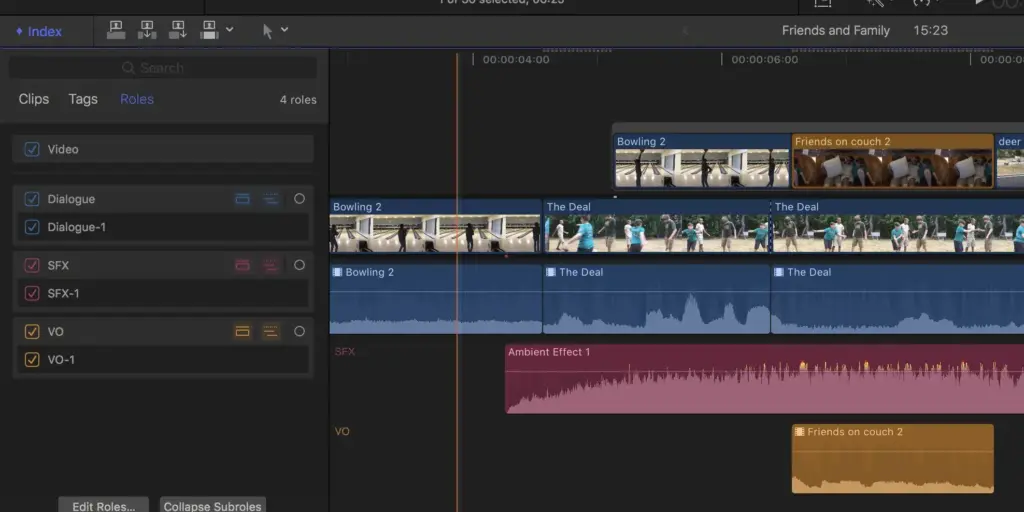
- Magnetic Timeline: This feature is exclusive to Final Cut Pro. Clips stick together like magnets. This helps stop gaps or mistakes on your timeline. It can be fast once you learn it.
- Super Fast on Apple Chips: Works incredibly well on Macs with Apple’s M1/M2/M3 chips. Saving videos and adding effects is often a very quick process.
- Great Color Tools: Good tools to make colours look just right.
- Edit with Multiple Cameras: You can easily edit videos shot with multiple cameras simultaneously.
- Object Tracker: Smart tool that can follow things in your video.
- Advantage:
- Pay once, no monthly fees!
- It works amazingly fast and smoothly on Macs.
- There are lots of pro features.
- Disadvantage:
- Only for Mac computers.
- The Magnetic Timeline can be tricky if you’re used to other editors.
- It costs more to buy upfront than to start a subscription.
- My Quick Thought: “If I only used Macs, Final Cut Pro would be a top choice for me. It’s so fast, and paying once is great. The Magnetic Timeline took me a bit to get used to, but then it felt very smart.”
- A Tip: Use “Roles” to organize your sound. You can label sounds (like “Dialogue,” “Music,” and “Effects”) and then easily control them.
5. VEGAS Pro (Great for Windows & Sound)
- Good For: Windows users, YouTubers, musicians making videos, and people who want good sound tools.
- Works On: Windows.
- Price: Subscription (from $13/month) or Buy Once (from $249) (as of May 2025, from VEGAS Creative Software website).
- My Rating: ⭐⭐⭐⭐⭐⭐⭐⭐✨ (8.5/10)
- What it is: VEGAS Pro is a pro video editor for Windows. It’s known for being flexible and having great tools for sound, as it started as a sound editor.
- Key Features:
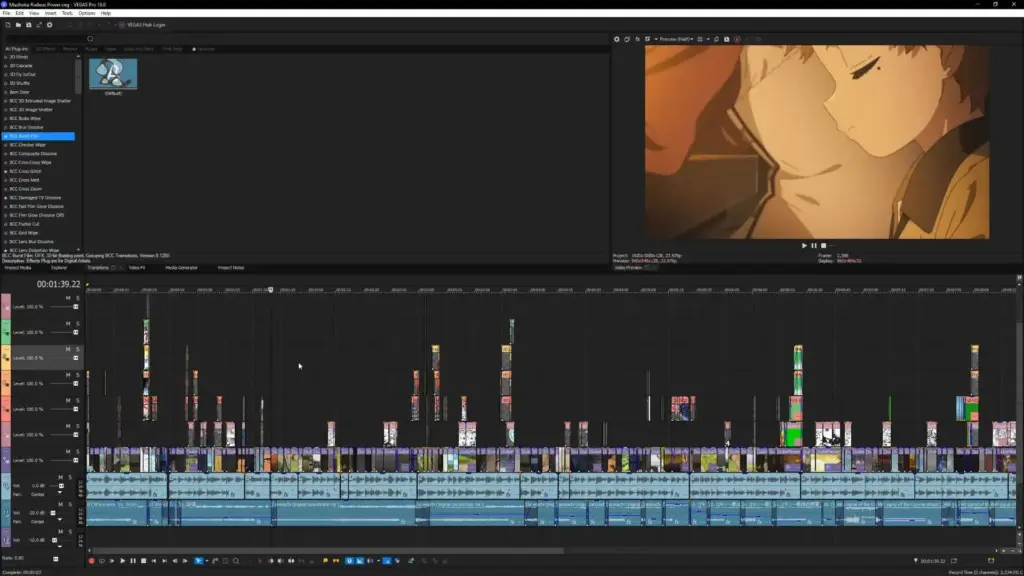
- Flexible Timeline: You can drag almost anything onto the timeline. It’s easy to make fades and changes right on the clips.
- Amazing Sound Tools: This is a big plus. It has great built-in tools for editing and mixing audio.
- Effects in Real Time: You can often see effects work right away without waiting.
- 4K/8K Video: Can handle high-quality video.
- AI Tools: Newer versions incorporate AI to enhance features, such as making videos appear artistic.
- Advantage:
- Many find it easier to learn than some other pro tools.
- Top-notch sound editing inside the video editor.
- Good built-in effects and titles.
- You can choose to subscribe or buy it once.
- Disadvantage:
- Only for Windows computers.
- Buying it once can be a bit pricey.
- Some users report that it can occasionally crash with very large projects, but the issue is improving.
- My Quick Thought: “VEGAS Pro is great for Windows users who care a lot about sound. I once edited a music video with it, and doing all the sound work right there was super helpful.”
- A Tip: Learn about “nested timelines.” It’s like putting a whole video project inside another one. Great for organizing big videos!
6. iMovie (Free & Easy for Apple Fans)
- Good for: Total beginners on Apple products, students, families, and quick videos.
- Works On: Mac, iPhone, iPad.
- Price: Free! (Comes with Apple devices).
- My Rating: ⭐⭐⭐⭐⭐⭐⭐⭐ (8/10)
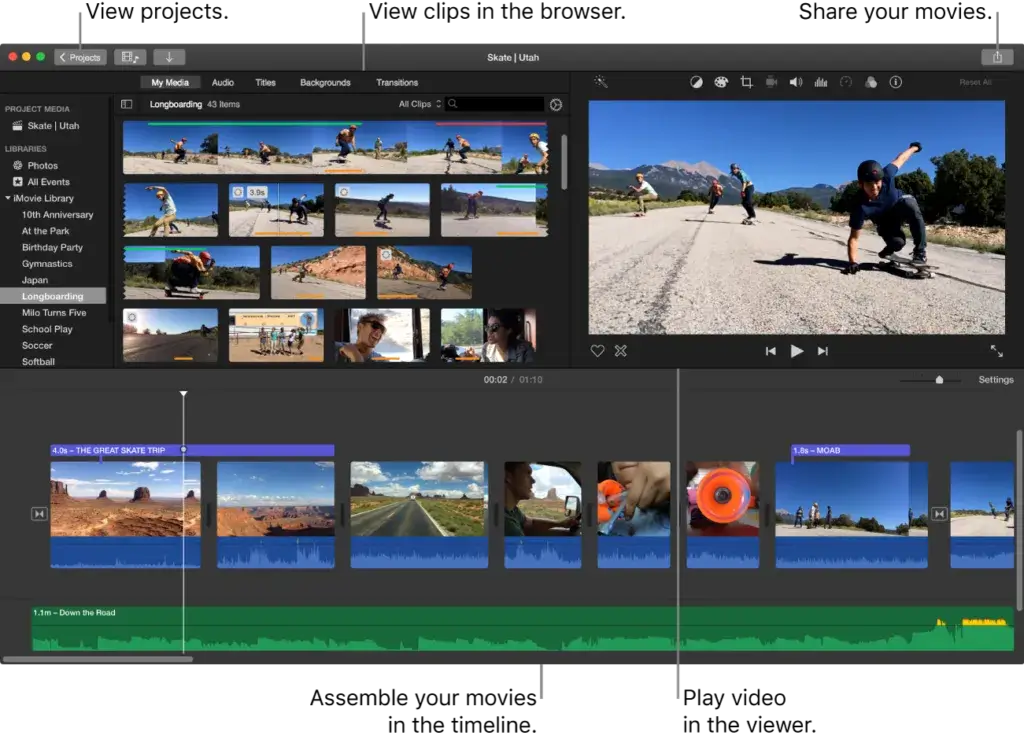
- What it is: iMovie is Apple’s free video editor. It comes on most Apple devices. It’s designed to be extremely easy for anyone to create visually appealing videos quickly and easily.
- Key Features:
- Super Simple Timeline: Just drag your clips and photos onto the timeline. It’s very easy to see what you’re doing.
- Fun Themes & Trailers: Has ready-made styles (“Themes”) for your videos. The “Trailers” feature lets you make cool movie-style trailers by just adding your clips to a template. Kids love this!
- 4K Video: Although it’s free, it allows you to edit 4K videos.
- Basic Color & Effects: Easy tools to make colours better, add filters (like black & white), or change video speed.
- Green Screen: You can even do green screen effects!
- Advantage:
- Totally free for Apple users.
- It’s extremely easy to learn, even if you’ve never edited.
- Great for family videos, school projects, and quick social media clips.
- Works on Mac, iPhone, and iPad. You can start on one and finish on another.
- Disadvantage:
- Only for Apple devices.
- Not as many fancy features as paid software.
- I can only use a limited number of videos and soundtracks.
- My Quick Thought: “If you have an Apple device and want to make simple videos without spending money or learning a lot, iMovie is perfect. My daughter made her first video with it in 20 minutes!”
- A Tip: Check out the “Audio Adjustments.” You can adjust the background music to a quieter level when people are talking. Also, use the “Ken Burns” effect to add movement to photos.
7. CapCut (Awesome for Social Media Videos)
- Good For: TikTok/Reels, social media, editing on your phone, free trendy effects.
- Works On: Mobile (iOS, Android), Windows, Mac.
- Price: Great Free version! Optional “Pro” subscription (around $8/month) (as of May 2025, from CapCut’s website).
- My rating: ⭐⭐⭐⭐⭐⭐⭐⭐✨ (8.5/10)
- What it is: CapCut is a super popular free video editor, especially for making TikToks and other social media videos. It’s made by the same company as TikTok. It’s easy to use and features a wide range of cool, trendy items. It works on phones and computers.
- Key Features:
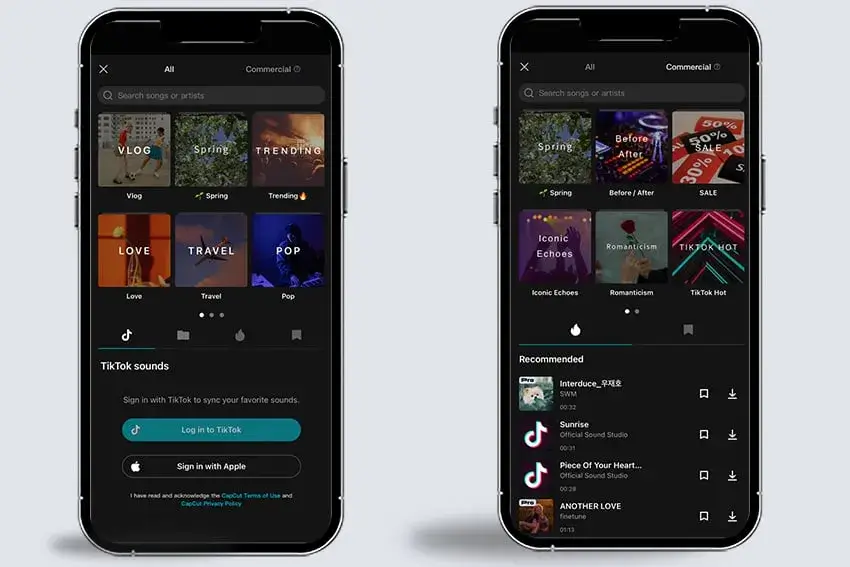
- Lots of Templates & Effects – CapCut offers a vast selection of ready-to-use video styles. Just add your clips! It also has all the latest filters, effects, stickers, and popular songs for social media. They add new stuff all the time.
- Smart AI Tools (Many are Free!): Auto Words on Screen (Captions): This is amazing! It listens to your video and writes out the words automatically. It’s super helpful for social media, and it works really well.
- Text to Voice: Type words and an AI voice will say them.
- Remove Backgrounds: Take out the background behind people without a green screen.
- Easy Share to TikTok: Send your videos straight to TikTok.
- 4K Video & Speed Changes: Edit 4K video and create cool slow-motion or fast-motion effects.
- Keyframes: This is a more advanced feature that allows you to control how objects move or change over time.
- Advantage: The free version is extremely powerful. You can do a lot without paying. And no ugly logos on your videos (for 1080p).
- Perfect for making fun, eye-catching social media videos quickly.
- It is very easy to use, especially on your phone.
- The auto-caption tool is the best for free software.
- Disadvantage: Best for short videos. Not for making long movies.
- Some new, advanced effects or features may require the paid “Pro” version.
- Some people worry about privacy because of the company that owns it.
- My Quick Thought: “CapCut has made it easy for anyone to make cool short videos. The auto-caption tool is a game-changer! I use it for quick social media drafts all the time.”
- A Tip: Check out the “Text Templates” and “Effects.” There are so many fun things! Also, try “Match Cut” to make your video cuts match the beat of your music.
8. Lightworks (Pro Features, Free Option)
- Good For: Indie movies on a budget, individuals seeking professional tools for free (with limitations).
- Works On: Windows, Mac, Linux.
- Price: Good Free version (720p export limit). Paid “Create” or “Pro” versions (from $10/month or buy once) for more features like 4K export (as of May 2025, from Lightworks website).
- My Rating: ⭐⭐⭐⭐⭐⭐⭐⭐ (9/10)
- What it is: Lightworks is a famous pro video editor. It’s even been used for some Hollywood movies! It has a very good free version if you want serious tools without paying.
- Key Features:
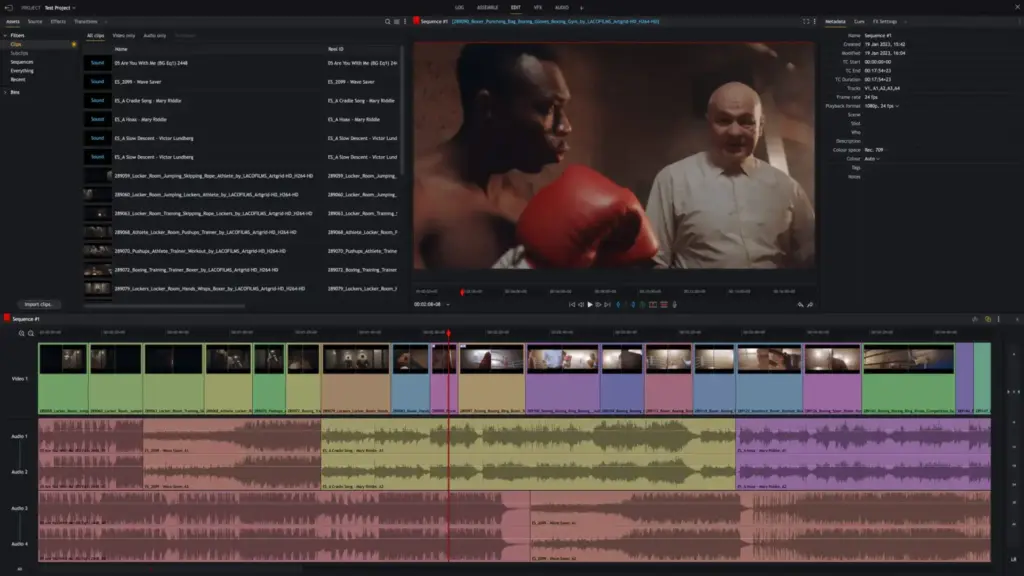
- Pro Editing Timeline: A flexible timeline for precise editing.
- Real-Time Effects: See many effects work right away.
- Multi-Camera Editing (Pro version): Edit videos from many cameras at once.
- YouTube/Vimeo Exports: Easy to save for these sites.
- Advantage:
- The free version is very powerful for pro-style editing.
- Works on Windows, Mac, and Linux.
- Lots of users and help online.
- Disadvantage:
- It can be challenging for beginners to learn. It looks different from other editors.
- The free version only saves videos in 720p quality (not Full HD or 4K). This is a big limit.
- You need to pay for advanced tools.
- My Quick Thought: “Lightworks Free is great if you want to try pro editing without spending money, as long as 720p video is okay for you. I was impressed using it on Linux for a small documentary; it was very stable.”
- A Tip: Learn Lightworks’ special ways of trimming clips. They are powerful once you get them. You can also change keyboard shortcuts to match other software you know.
9. Shotcut (Powerful, Free & Open Source)
- Good For: People who like free, open-source software and cross-platform users.
- Works On: Windows, Mac, Linux.
- Price: Totally Free!
- My Rating: ⭐⭐⭐⭐⭐⭐⭐⭐ (8/10)
- What it is: Shotcut is a completely free video editor made by a community of people. It works on almost any computer. It has many features for a free tool.
- Key Features:
- Plays Almost Any Video File: You don’t usually need to change your video files before using them.
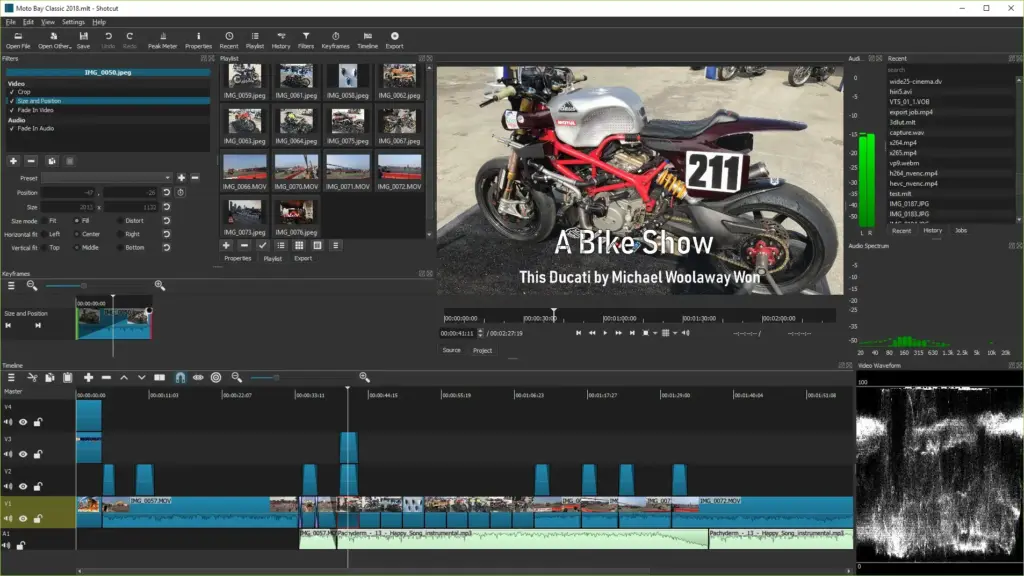
- Timeline Editing: A normal timeline where you can arrange clips.
- Lots of Filters: Many tools for colour, sound, and special effects.
- 4K Video: Can edit and save 4K videos.
- Record Your Screen: You can record your computer screen or webcam right into Shotcut.
- Advantage:
- It’s 100% free, with no hidden costs or watermarks.
- Works on Windows, Mac, and Linux.
- Gets regular updates from its community.
- You can customize the appearance to suit your preferences.
- Disadvantage:
- It can be a bit tricky for absolute beginners to learn. The look isn’t as polished as some paid software.
- It doesn’t have as many super-smart AI tools.
- It can sometimes be slow with very big projects.
- My Quick Thought: “Shotcut is amazing for a free, community-made tool. If you’re patient and want a powerful free editor that works everywhere, it’s a solid choice. It doesn’t hold your hand as much as some others.”
- A Tip: Right-click on clips! Many useful tools are hidden in those menus. The “Filters” panel is where you do most of your changes to clips.
10. VideoPad (Simple for Basic Home Videos)
- Good For: Total beginners, quick home movies, simple social media.
- Works On: Windows, Mac, Mobile.
- Price: Free version for home use (with limits). Paid “Home” (around $40) or “Master’s” (around $70) versions (as of May 2025, from the NCH Software website).
- My Rating: ⭐⭐⭐⭐⭐⭐⭐✨ (7.5/10)
- What it is: VideoPad is made to be very easy for beginners. It’s ideal for simple tasks, such as creating home movies or basic YouTube videos, without too many confusing options.
- Key Features:
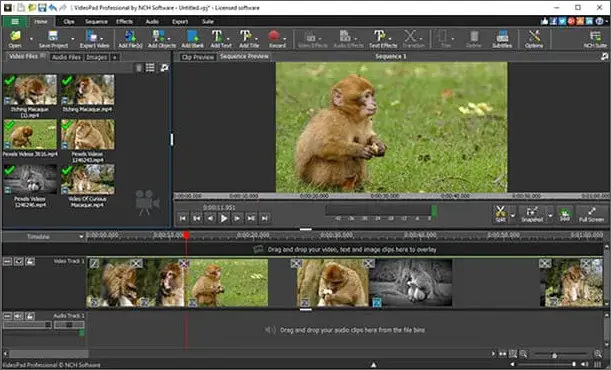
- Easy Timeline: It is simple to drag your clips and sound onto the timeline.
- Transitions & Effects: Has over 50 simple effects and ways to change scenes.
- 360-Degree Video: Can edit 360-degree videos.
- Sound Tools: Mix sound, add your voice, and use some free sound effects.
- Share to YouTube/Facebook: Easy to save for these sites.
- Advantage:
- It is very easy to learn and use. It is great for people who find other software too hard.
- There are affordable paid versions and a free one for home use.
- It works okay on older computers for simple HD videos.
- Disadvantage:
- The free version is only for personal use and may display ads or prompt you to upgrade.
- Not many advanced features for pros.
- The Mac version sometimes has fewer features than the Windows one.
- The look can feel somewhat outdated.
- My Quick Thought: “VideoPad is good if you just need to do simple edits quickly and easily. I’ve suggested it to older relatives for their family videos.”
- A Tip: Look at the “Video Effects” and “Audio Effects” tabs. There are some quick one-click fixes and fun things you can add.
11. Corel VideoStudio Ultimate (Fun for Windows Users)
- Good For: Windows users who like lots of features prefer a feature-rich experience and creative projects.
- Works On: Windows.
- Price: Buy Once (around $100 for the Ultimate version) (as of May 2025, from Corel’s website).
- My Rating: ⭐⭐⭐⭐⭐⭐⭐⭐✨ (8.5/10)
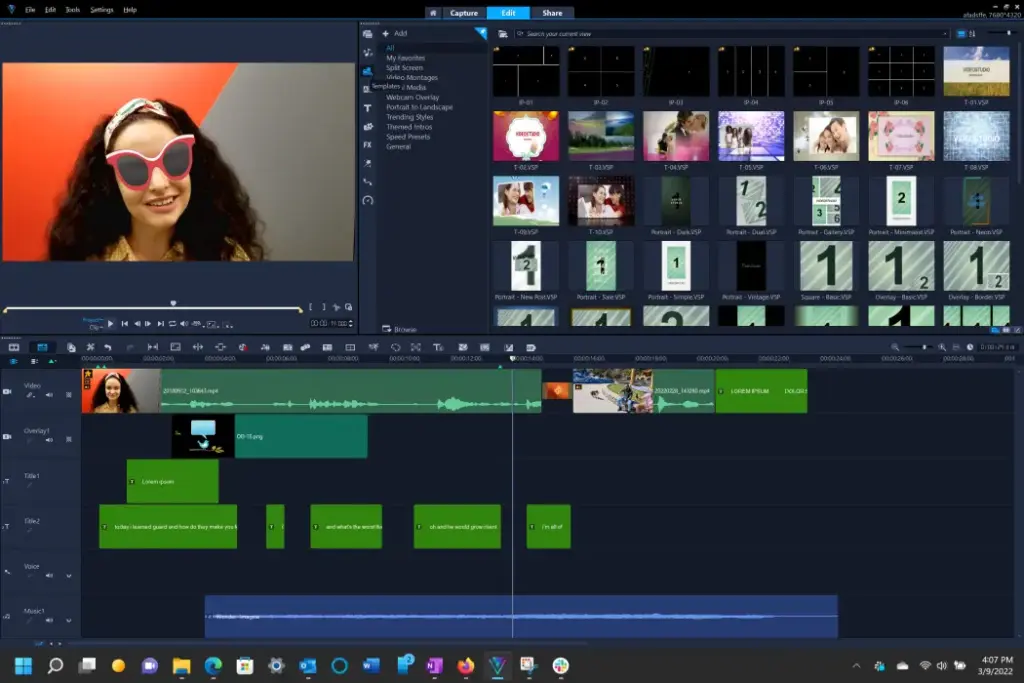
- What it is: Corel VideoStudio is a video editor for Windows that has lots of features but is still pretty easy to use. It’s ideal for individuals who want to engage in more creative pursuits.
- Key Features:
- Easy to Use: There are various ways to edit, ranging from simple to more detailed.
- Handles Modern Video: Works with 360 VR, 4K, and even 3D video.
- Fun Creative Tools: Stop motion animation, multi-camera editing, motion tracking.
- AI Helper Tools: Can find faces and turn speech into text for captions.
- Numerous Effects & Templates: Includes a wide range of cool titles, effects, and transitions.
- Advantage:
- Easy to use but packed with features.
- Great for 360-degree and 4K video.
- It’s a good price for a one-time buy.
- Disadvantage:
- Only for Windows computers.
- Sound editing tools are okay but not super advanced.
- The look can feel somewhat dated in certain areas.
- My Quick Thought: “Corel VideoStudio is a solid choice for Windows users who want to be creative. It offers a range of fun tools and performs well for its price. I like its 360-video support.”
- A Tip: Check out the “Instant Project” templates. They give you a good start for different types of videos (like travel or events).
12. CyberLink PowerDirector 365 (Super Fast & Smart)
- Good For: Video fans who want speed, lots of AI tools, and pro-like features.
- Works On: Windows (best), Mac (some features).
- Price: Subscription “365” (around $52/year) or Buy Once “Ultimate” (around $140) (as of May 2025, from CyberLink’s website).
- My Rating: ⭐⭐⭐⭐⭐⭐⭐⭐⭐✨ (9.5/10)
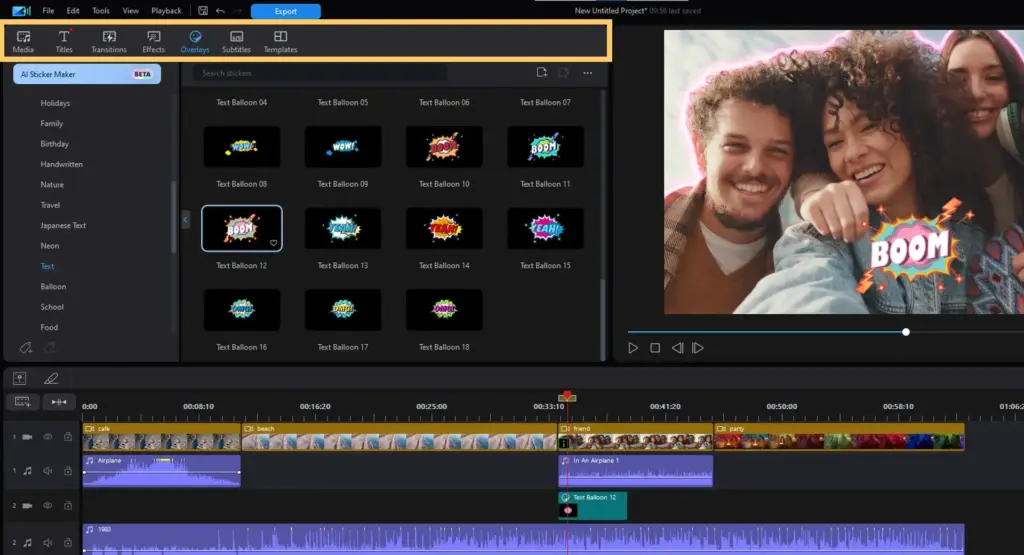
- What it is: PowerDirector is a highly popular video editor renowned for its speed and extensive feature set, particularly its intelligent AI tools. It aims to be easy enough for most people while being powerful enough for professionals.
- Key Features:
- Super-Fast Saving Videos: PowerDirector is often one of the fastest video editors at saving (rendering) your finished videos. This saves a lot of time!
- Lots of AI Tools: AI Motion Tracking: Follows things in your video.
- AI Sky Replacement: Easily change the sky in your videos.
- AI Speech to Text: Makes captions from your audio.
- AI Sound Fixes: Cleans up noise or wind from your audio.
- Handles All Video Types: Good for 360 VR, 4K, and even 8K video.
- Action Camera Tools: Special tools for videos from GoPro-type cameras.
- Lots of Effects & Stock Media (365 version): The subscription gives you tons of effects, music, and video clips to use.
- Advantage:
- Amazingly fast at saving videos. This really stood out in my tests.
- Packed with useful AI tools and creative features.
- It’s quite easy to use, considering the amount it can do.
- The “365” subscription offers great value, including all updates and media.
- Disadvantage:
- With so many features, it can be overwhelming for total beginners.
- The subscription is best for all the new content, which may not appeal to some people.
- The Mac version isn’t always as up-to-date as the Windows one.
- My Quick Thought: “PowerDirector 365 is a beast! It’s incredibly fast, and the AI tools are truly impressive and helpful. For Windows users wanting top features and speed, it’s tough to beat.”
- A Tip: Try the “Video Intro Designer.” It makes it easy to create pro-looking intros for your videos quickly.
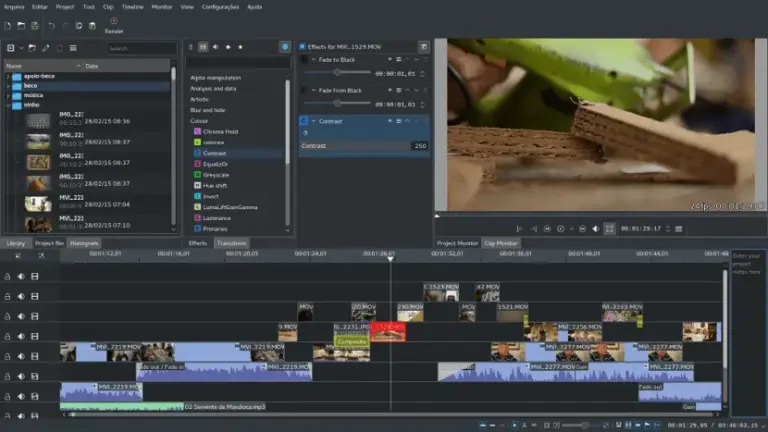
13. Kdenlive (Solid Free Tool for Learners)
- Good For: People who like free, open-source software, Linux users, and patient learners.
- Works On: Linux, Windows, Mac.
- Price: Totally Free!
- My Rating: ⭐⭐⭐⭐⭐⭐⭐⭐ (8/10)
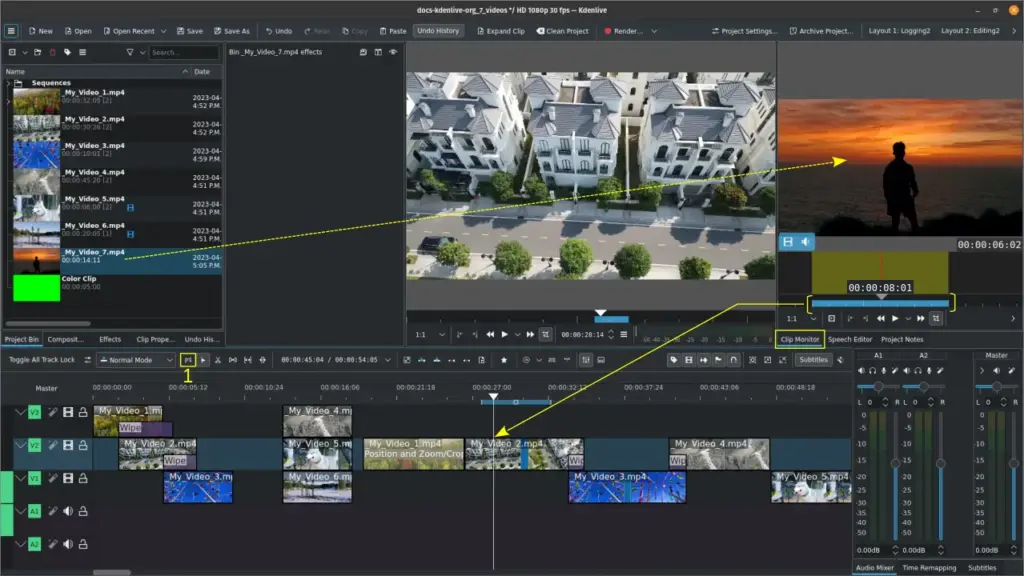
- What it is: Kdenlive is another great free, open-source video editor. It originally started on Linux but now also works on Windows and Mac. It aims to be a good tool for both beginners and more advanced users.
- Key Features:
- Many Video/Audio Tracks: You can use as many tracks as you need.
- Lots of Effects: Good built-in effects and can use others, too.
- Keyframes: Let you change effects over time (like a slow fade-in).
- Title Maker: Tool to make your text and titles.
- Proxy Editing: Helps it run better on slower computers by using smaller temporary files for editing. This is great for a free tool!
- Advantage:
- 100% free and open-source. No watermarks.
- Works on Linux, Windows, and Mac.
- Gets regular updates from its community.
- Powerful for a free tool, with features like proxy editing.
- Disadvantage:
- It can be a bit harder for total beginners to learn than some others.
- Sometimes, it can crash, especially on Windows (although it’s improving).
- Saving videos might be slower than some paid software.
- Not as many super-smart AI tools or fancy templates.
- My Quick Thought: “Kdenlive is a really good achievement for a free community project. If you’re on Linux or want a powerful free editor and are willing to learn, it’s great. The proxy editing is a lifesaver for big files on older computers.”
- A Tip: If you’re new to Kdenlive, watch some of their official tutorial videos. They help a lot. Use the “Project Bin” to keep your files organized.
14. Clipchamp (Easy Online Editing by Microsoft)
- Good For: Quick online edits, free 1080p videos, and social media.
- Works On: Web browser (Chrome, Edge) & Windows App.
- Price: Great Free version! The “Essentials” plan (approximately $12/month) offers additional features (as of May 2025, according to the Clipchamp website).
- My Rating: ⭐⭐⭐⭐⭐⭐⭐⭐✨ (8.5/10)
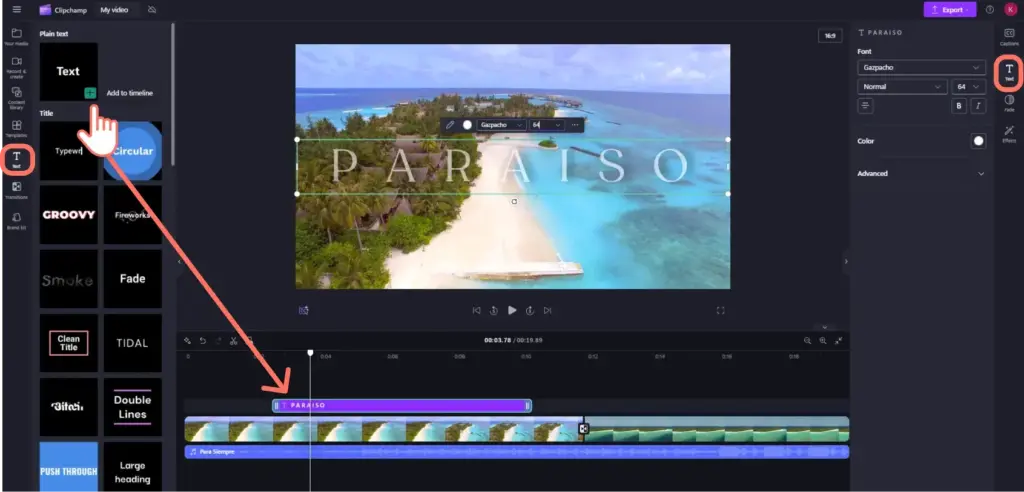
- What it is: Clipchamp is mostly an online video editor (it works in your web browser). Microsoft owns it now. It’s made for quick and easy videos, especially for social media or simple business promos. Great if you don’t want to install big software.
- Key Features:
- Lots of Templates: Many ready-made styles for Instagram, TikTok, YouTube, etc. Just add your stuff.
- Easy Drag-and-Drop: Very simple to use, clean look.
- Stock Library: The free plan includes a selection of free videos, images, and music. Paid plan has much more.
- AI Tools: Text-to-voice, auto-captions.
- Share to YouTube/TikTok: It is easy to send your videos to these sites.
- Advantage:
- Super easy for beginners.
- It works in your web browser, so no install needed (mostly).
- The free version is awesome! You can save videos in 1080p quality with NO watermark! This is rare and great.
- Templates help you make pro-looking videos fast.
- Disadvantage:
- Needs good internet. It can be slower than software on your computer for big projects.
- The free version has limits on some fancy effects and stock media. I need to pay for 4K.
- It’s not for super complex, professional movie editing.
- My Quick Thought: “Clipchamp is fantastic for quick, easy edits, especially for social media. The free 1080p export with no watermark is a huge win! I use it for fast promo videos when I don’t need my big desktop editor.”
- A Tip: Start with a template! It gives you a good structure. The “Brand Kit” (paid plan) is ideal if you frequently need to use your company’s colours and logo.
15. InVideo (Quick Videos with Templates Online)
- Good for: Marketers, teachers, and individuals needing professional-looking videos quickly with templates.
- Works On: Web browser (Online).
- Price: Free plan (with watermark). Paid “Plus” (around $25/month) or “Max” (around $60/month) plans for more (as of May 2025, from the InVideo website).
- My Rating: ⭐⭐⭐⭐⭐⭐⭐⭐✨ (8.5/10)
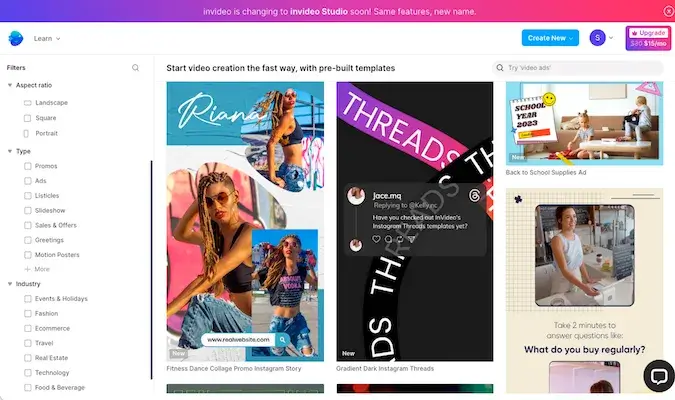
- What it is: InVideo is another online video maker that uses lots of templates and AI to help you make videos easily, even if you’ve never edited them before. Good for marketing, social media, and presentations.
- Key Features:
- Thousands of Templates: Huge library of styles for almost anything. You pick one and change the text, images, and clips.
- AI Text-to-Video: You can give it a script or blog post, and its AI tries to make a video draft for you with stock footage and text.
- Stock Media Access: Works with big libraries of stock video, images, and music.
- Easy for Non-Editors: Made for people who aren’t video experts.
- Team Tools (on some plans): Let teams work together on videos.
- Advantage: Very beginner-friendly. No tech skills are needed.
- Lots of templates and stock stuff make it fast to create.
- AI text-to-video is interesting for turning articles into videos.
- Disadvantage: The free plan places a watermark (logo) on your videos.
- There is not as much detailed control as desktop software if you want to edit every little thing from scratch.
- Paid plans can be a bit expensive if you only make videos sometimes.
- It needs good internet.
- My Quick Thought: “InVideo is great if you want to make good-looking videos super fast using templates, especially for marketing. Its AI text-to-video is a cool idea for quickly repurposing content. It’s more about speed and templates than deep editing.”
- A Tip: If you use the AI Text-to-Video, think of the first video it makes as a starting point. You’ll probably want to change some clips and text to make it perfect.
Quick Look: Top Video Editors Compared (2025)
Here’s a quick chart to compare some top choices. See the full reviews below for more details!
| Software (Logo) | Good For | Works On | Price | My Rating (Out of 10) | Cool Thing About It | Official Website |
|---|---|---|---|---|---|---|
| Adobe Premiere Pro | Pros, Big Movies | Win, Mac | Subscription | (9/10) | Works with all Adobe apps | Adobe Premiere Pro Website |
| DaVinci Resolve | Pro Color, Free Power | Win, Mac, Linux | Free / Buy Once | (9.5/10) | Best FREE color tools | DaVinci Resolve Website |
| Filmora | Beginners, Easy, Social | Win, Mac, Mobile | Sub / Buy Once | (8.5/10) | Super easy to learn | Filmora Website |
| Final Cut Pro | Mac Pros, Fast | Mac | Buy Once | (9/10) | Super fast on Apple computers | Final Cut Pro Website |
| PowerDirector 365 | Fast Edits, Smart AI | Win, Mac (some) | Sub / Buy Once | (9.5/10) | Fastest saving, lots of AI | PowerDirector Website |
| CapCut | TikTok/Reels, Mobile | Mobile, Win, Mac | Free / Sub (Pro) | (8.5/10) | Best FREE auto words on screen (captions) | CapCut Website |
| iMovie | Apple Beginners, Free | Mac, iOS | Free | (8/10) | Easiest FREE start for Apple | (Comes with Apple devices) |
(My ratings are based on how easy it is for the right user, features, how well it works, and price. Prices can change, so always check their websites! This info is for May 2025.)
Free vs. Paid Video Software: Which is Best for You?
So, should you use free video editing software or pay for a professional one? There’s no one right answer! It depends on YOU. Why Free Software is Awesome:
- It Costs $0! This is great if you’re on a budget or just trying out new things.
- Good for Learning: Many free tools are simple and help you learn the basics.
- Some are Really Powerful: Tools like DaVinci Resolve (free version) can do amazing things!
Possible Downsides of Free Software:
- Fewer Fancy Features: You might not have all the cool tools of paid software.
- Watermarks: Some free tools put their logo on your video (but many good ones don’t!).
- Export Limits: This may only allow you to save videos in lower quality (such as 720p instead of 1080p or 4K).
- Less Support: Usually, you get help from online forums, not a company helper.
Why Paid Software Can Be Worth It:
- All the Best Tools: You get advanced features like amazing colour tools, AI helpers, and tons of effects.
- Works Better/Faster: Often runs smoother and saves videos quicker.
- Help When You Need It: Typically includes customer support and regular updates.
- No Watermarks, More Options: Your videos look clean, and you can save them in many ways.
Possible Downsides of Paid Software:
- It Costs Money! Subscriptions add up, and buying once can be a big upfront cost.
- Can Be Harder to Learn: More features can mean it takes longer to figure out.
How to Decide? Ask Yourself:
- How much can I spend?
- How much time do I want to spend learning?
- What features do I REALLY need?
- What are my video goals (fun, pro, etc.)?
- Have I tried the free trials? Many paid tools offer a free trial period. Could you do it?
The best choice is the one that helps you make the videos you want without too much stress or cost.
Cool Tips & Tricks for Better Video Editing
Want to make your videos even better and editing easier? Here are some tips I’ve learned:
- Plan Your Video First!
- Storyboard: Draw simple pictures of your scenes. It helps you see how your video will flow.
- Script/Outline: Write down what people will say or what you want to show.
- Organize Your Files: Keep your video clips, music, and pictures in neat folders. Name them clearly. Like this:
- My_Vacation_Video/Clips/Beach_Fun_01.mp4
Trust me, and this saves headaches later!
- Good Basic Edits:
- Clean Cuts: Trim out boring bits and mistakes. Make your cuts smooth.
- Simple Transitions: Don’t use too many flashy scene changes. A simple cut or fade often looks best.
- Make Your Sound Great!
- Reduce Noise: Try to get rid of background hums or hisses. Most software can help.
- Even Volume: Ensure all your clips are at a consistent loudness level.
- Good Music: Add music that fits your video. Keep it quiet enough so you can still hear people talk. (Make sure you have permission to use the music!)
- Colours Matter!
- Fix Colours (Correction): Ensure your video is neither too dark nor too bright. Make colours look natural.
- Style Colours (Grading): Add a special look or mood to your video with colour. This makes it look more pro.
- Make it Right for Sharing:
- Right Size: Use vertical video for TikTok/Reels (9:16). Use horizontal for YouTube (16:9).
- Good Quality: Save in high quality (like 1080p or 4K), but ensure the file isn’t too large to upload. MP4 is usually a good format.
- Learn Keyboard Shortcuts!
- This is my BIGGEST tip to save time! Using keys for things like Cut, Play, and Save (Ctrl/Cmd+S is your best friend!) will make you so much faster. Look them up for your software.
Follow these tips, and your videos will look better, and editing will be more fun!
Who is This Guide NOT For?
This guide is for individuals seeking general video editing software suitable for tasks such as creating social media content, uploading videos to YouTube, editing family videos, or even editing movies. This guide is probably NOT the main one for you if you only need:
- Fancy 3D Animation Software: Like for making cartoon characters (e.g., Blender, Maya). (If you need to read more about the 3D Animation Software check out our guide to Best Animation Software for Beginners.)
- Super Advanced Special Effects Tools: Beyond what’s in normal editors (e.g., Nuke).
- Pro Music Making Software: For writing songs or complex sound design (e.g., Pro Tools, Ableton Live).
- Live Streaming Software: For broadcasting live videos (e.g., OBS Studio).
If you need those special tools, this guide can still help (as editing is part of it!), but you’ll want to look for guides just on those topics, too.
If I Had to Pick Just ONE… (My Quick Picks!)
Okay, 15 is a lot! If you just want a quick idea, here are my top picks for different people:
- Total beginner, Mac user, $0 budget: ➡️ iMovie
- Beginner, Windows PC, want more than free, under $100: ➡️ Filmora (buy once) or Corel VideoStudio
- Want the BEST free pro tool (any computer): ➡️ DaVinci Resolve (Free Version)
- Pro, Windows, need industry tools: ➡️ Adobe Premiere Pro
- Pro, Mac, want to buy once: ➡️ Final Cut Pro
- Making quick TikToks on my phone: ➡️ CapCut
- Windows user, want speed & AI, okay with subscription: ➡️ CyberLink PowerDirector 365
These are just quick ideas! Your best pick might be different.
Let’s Wrap It Up! Your Awesome Video Awaits!
We’ve talked about a LOT today! From what popular video editing software is to looking at 15 cool options and getting some tips. I really hope you feel more ready and excited to pick a tool and start making videos!
Think about turning your raw video clips into something amazing that people will love to watch. Whether you’re making your first video, dreaming of being a YouTube star, or just want your family videos to look great, the right video editing tools are out there for you.
We saw there’s a fit for everyone:
- Are you new to editing? Try free video editing software like DaVinci Resolve (free), Shotcut, or iMovie.
- Getting better? Tools like Filmora or Vegas Pro offer more advanced features.
- Going pro? Premiere Pro, Final Cut Pro, or DaVinci Resolve Studio are top choices.
- Social media star? CapCut or Clipchamp are great for quick, fun videos.
Video editing is continually improving with the introduction of new AI assistants and online tools. It’s a fun time to be making videos!
So, what are you waiting for? Your story needs to be told! Look at the options, try some free ones, and find the tool that makes you feel creative. Make something awesome!
Frequently Asked Questions (FAQ)
Q1: How do I pick the BEST video editing software for ME? It isn’t very clear!
A: Think about these five things:
1. Your Skill: Beginner, know a bit, or pro?
2. Your Videos: Social media, YouTube, family, movies?
3. Your Budget: Free, monthly pay, or buy once?
4. Your Computer: Windows, Mac, Linux? Is it powerful enough? (Check video editing system requirements!)
5. Features You Need: What tools MUST it have?
Q2: Is paid video software always better than free?
A: Not always! Free video editing software can be amazing. DaVinci Resolve (free) is super powerful. Free is great for learning. Paid software typically offers more advanced tools, better support, and no watermarks. But if a free tool does what you need, it’s “better” for you!
Q3: I’m a total beginner. What software won’t scare me off?
A. For easy starts, try:
1. iMovie: (if you have a Mac/iPhone). It’s free and simple.
2. Filmora: Very easy to use, with lots of templates.
3. CapCut: Great for social media, extremely easy to use on phones.
4. Clipchamp: Online, simple, free 1080p videos with no logo.
Q4: Do I need a super fancy computer for video editing?
A: A powerful computer helps, but you don’t always need the BEST.
1. Good things to have: At least 8GB RAM (16GB is better), a good graphics card (GPU), and a fast hard drive (SSD).
2. If your computer is older, Pick “lighter” software. Or look for “proxy editing” (DaVinci Resolve and Premiere Pro have this feature). It makes editing easier on your computer.
Always check the software’s video editing system requirements first!
Q5: What video file format should I save my videos in?
A: For sharing online (YouTube, social media), MP4 (with H.264 video) is usually best. It works almost everywhere and looks good.
Q6: How can I make the sound in my videos better?
A: Good sound is important!
1. Try to record good sound in the first place (use a mic if you can).
2. Use software tools to reduce background noise.
3. Make sure the volume is even.
4. Add background music (not too loud!). Make sure you can use it legally.
Q7: What’s “colour grading”? Why do pros do it?
A: Color grading is making the colours in your video look a certain way to create a mood or style. (First, you do a colour correction to fix basic colour problems.) It’s important because it makes videos look more professional and consistent and can help tell the story better.
Q8: How do I make my videos look good on YouTube?
A: For Youtube:
1. Use 16:9 size (widescreen). For Shorts, use 9:16 (vertical).
2. Save in 1080p or 4K quality.
3. MP4 (H.264) is a good format.
4. Make sure the sound is clear.
5. Make the first few seconds interesting!
6. Edit out boring parts.
7. Also, make a great thumbnail picture and title for your video!
If you see anything old, a link that doesn’t work, or a cool new feature we missed, please tell us! You can comment below or contact us. Thanks for helping us keep this guide awesome!
We really hope this super guide helps you find your perfect video editing software! Do you have a favourite tool? Or a question we didn’t answer? Let us know in the comments! If this guide helped you, please share it with other video makers!