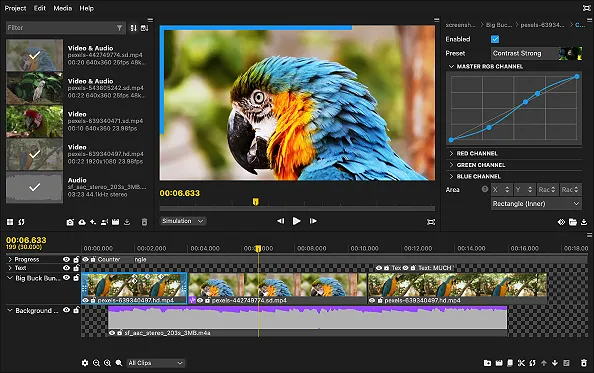
The Ultimate Guide to the Best Free Online Video Editors in 2025
Want to create amazing videos without spending any money on complicated software? You’ve found the perfect guide! We explore the best free online video editor tools available in 2025. This guide will help you easily trim, cut, add cool music, and make your videos shine. Whether you’re just starting out with video editing or you’re a pro looking for quick tools, we’ll help you pick the ideal free online video editor. Let’s unlock your video creativity for free!
About the Author: Ajitkumar Gupta & The TrustMySoftware Team
Hi, I’m Ajitkumar Gupta, founder of TrustMySoftware.com. Our team, with a combined 35+ years in professional video editing for clients in digital marketing and e-learning, educational content creation for online platforms, and rigorous software analysis, lives and breathes video!
We’ve spent over 150 hours of dedicated, hands-on testing for this guide alone, meticulously analyzing numerous video editing tools. We didn’t just read the specs. We created 10 distinct sample projects (including a social media ad, a tutorial segment, a product demo, and a family vacation montage) using the free version of each editor. This allowed us to experience their capabilities and limitations firsthand truly.
Our goal is to provide you, our reader, with the most honest, practical, and in-depth advice so you can confidently choose the best tool for your passion projects or professional needs. We believe everyone deserves to tell their story through video, without cost being a barrier.
This guide is a living document. The world of online video editors changes fast! We are committed to updating this guide every 6-12 months to ensure you always have the most current information. Last Updated: May 2025.
The Video Revolution: Why Free Online Video Editors Are a Game Changer
Video is everywhere, isn’t it? From TikTok dances to important company messages, video is how people love to learn, be entertained, and connect. (In fact, some reports project over 80% of all internet traffic will be video in the near future!) However, not long ago, creating even a simple video required purchasing expensive software and having a powerful computer. It felt like only big companies or professional filmmakers could do it.
But guess what? Things have changed – a lot! Thanks to the internet and the efforts of clever people creating amazing tools, we now have free online video editors. These are like magic wands for video creators. They work right in your internet browser (like Chrome, Firefox, or Safari). You don’t need to download big programs or pay a single penny to get started.
This is huge because it means anyone can now make great videos. Whether you’re a student wanting to make a cool presentation, a small business owner trying to show off your products, a gamer sharing your best moments, or just someone with a story to tell, these free online video editing tools open up a whole new world of creativity. They are helping to level the playing field, making video creation accessible to everyone, everywhere. The demand for these tools is skyrocketing, and they are getting better and more powerful every single day.
So, Why Exactly Should You Choose a Free Online Video Editor? The Big Benefits!
You might be thinking, “If they’re free, are they any good?” That’s a fair question! And the answer is a big YES! Here’s why choosing a free online video editor can be an incredibly smart move:
- Massive Money Saver: This is the most obvious one! Professional video editing software can cost hundreds, even thousands of dollars. Alternatively, they may have monthly subscription fees that can add up quickly. With free online editors, you keep that money in your pocket. This is especially beneficial for students, hobbyists, non-profits, or startups who are watching their budgets.
- Edit From Literally Anywhere: Because these tools live online, you’re not tied to one computer. You can start editing a video on your home desktop, continue on your laptop at a coffee shop, and even make quick tweaks on a tablet (though a bigger screen is usually easier for detailed work). All you need is an internet connection. This flexibility is a dream for people on the go.
- Super Easy for Beginners: Many paid video editors are packed with so many buttons and menus that they look like an aeroplane cockpit – totally scary for new users! Most free online video editors are designed with simplicity in mind. They often use “drag-and-drop” interfaces, which means you simply click and drag your video clips and music to where you want them to be. They usually have clear labels and helpful tutorials, making the learning curve much gentler. You can start making good-looking videos much faster.
- All the Key Features You Really Need: Don’t think “free” means “useless.” These editors come packed with essential tools. You can:
- Trim and Cut: Remove boring bits or mistakes.
- Merge Clips: Join several smaller videos into one.
- Add Text: Put titles, captions, or explanations on your video.
- Include Music and Sounds: Add background music or sound effects (many offer free libraries!).
- Basic Effects and Transitions: Add fades, wipes, or simple colour changes to make your video more polished.
- Change Speed: Make parts of your video faster or slower for dramatic effect.
- No Installation Headaches or Computer Strain: Big video software can take a long time to download and install. Additionally, they often require a powerful computer with ample memory and a high-end graphics card to run smoothly. Online video editors skip all that. Because they run in your browser, they don’t use up much of your computer’s power. This means even older or less powerful computers can often handle them just fine.
- Always Up-to-Date: With traditional software, you have to wait for big updates, and sometimes you even have to pay for them. Online tools are different. The companies that make them are constantly fixing bugs, adding new features, and improving performance behind the scenes. You get the latest and greatest version every time you log in without doing a thing.
- Great for Quick Edits and Social Media: Need to quickly trim a video before posting it to Instagram? Want to add some text to a TikTok? Free online video editors are perfect for these quick jobs. You can get in, edit, and export your video much faster than with bulky desktop software.
- Collaboration (Sometimes!): Some free online editors even let you work on a video project with other people at the same time! This is amazing for group school projects or small business teams.
Think of these content creation tools as your friendly, approachable gateway into the world of video. They lower the barriers and empower you to share your vision.
Who Gets the Most Bang for Zero Bucks? Exploring Who Benefits Most
While anyone can use them, certain groups of people find free online video editors especially life-changing:
- Absolute Beginners & Hobbyists:
- Scenario: You just got a new phone that takes great video, and you want to make fun family movies or share your travel adventures online, but the idea of complex software scares you.
- Benefit: Free online editors offer simple interfaces, often with guided tutorials and drag-and-drop functionality. This allows you to learn the basics of video editing, such as cutting, adding music, and simple text, without feeling overwhelmed. You can experiment and build your skills at your own pace, turning raw footage into cherished memories or engaging stories.
- Students & Educators:
- Scenario (Student): You need to create a video presentation for a history class or a short film for a media studies project, but your student budget is tight.
- Scenario (Educator): You want to create engaging video lessons and tutorials for your students or flip your classroom, but your school doesn’t provide expensive software.
- Benefit: These tools provide all the necessary features for educational content – cutting, adding voiceovers, inserting images, and text overlays. Some even have screen recordings! They make learning more interactive and accessible without financial strain. Collaboration features on some platforms are also great for group projects.
- Content Creators & Social Media Influencers (Especially Just Starting Out):
- Scenario: You’re building your presence on YouTube, TikTok, Instagram Reels, or other platforms. You need to post consistently, but you don’t have the budget for professional software yet.
- Benefit: Speed and ease of use are key here. You can quickly edit vlogs, tutorials, reviews, or short entertaining clips. Many editors have templates or aspect ratios perfect for social media. While you might eventually upgrade, free tools are fantastic for getting started and building an audience. Look for tools that allow easy captioning for accessibility!
- Small Business Owners & Marketers on a Shoestring Budget:
- Scenario: You run a small coffee shop, an online craft store, or offer a local service. You want to create promotional videos, product demos, customer testimonials, or social media ads. Still, you can’t afford a marketing agency or expensive tools.
- Benefit: Video is incredibly powerful for marketing. Free editors let you create professional-looking content to attract customers, explain your products, or build your brand online without needing a huge marketing budget. Look for features that allow you to add your logo or brand colours.
- Non-Profit Organizations:
- Scenario: Your organization is doing amazing work, but it relies heavily on donations and volunteers. You need to create videos to raise awareness, showcase your impact, or train volunteers.
- Benefit: Free tools allow non-profits to tell their stories compellingly through video without diverting precious funds from their core mission.
- Anyone Needing a Quick, Occasional Edit:
- Scenario: You don’t make videos often, but occasionally, you need to trim a video for an email, make a quick birthday video montage for a friend, or cut out a mistake from a recording.
- Benefit: Why pay for software you’ll barely use? A free online video editor is perfect for these one-off tasks. Just hop online, do your edit, and you’re done.
Essentially, if you value creativity, efficiency, and avoiding unnecessary spending, in that case, these free video editing platforms will quickly become your best friends in the content creation world.
Choosing Wisely: Key Factors to Consider Before You Pick Your Editor
Not all free online video editors are created equal. To find the one that’s truly the best free video editor for you, think carefully about these important points:
- 1. Ease of Use (The User Interface – UI):
- What to look for: Is the editor’s layout clean and easy to understand, or is it cluttered and confusing? Does it offer a “timeline” view (where you see your clips laid out horizontally) or a simpler “storyboard” view (like a comic strip)? Are the buttons clearly labelled? Is there drag-and-drop functionality?
- Why it matters: If an editor is hard to use, you’ll get frustrated and give up. A good UI makes the editing process enjoyable, allowing you to focus on being creative rather than fighting the software. Look for video tutorials or help guides offered by the editor. Some even have active user communities where you can ask questions and receive answers.
- 2. Essential Editing Features (The Toolbox):
- What to look for: Beyond basic trimming and cutting, what else do you need?
- Must-haves for most: Splitting clips, adding text (with font/colour choices), transitions between clips (like fades or wipes), audio controls (adjusting volume, adding background music), and the ability to import images.
- Nice-to-haves: More advanced text animation, colour correction tools (brightness, contrast, saturation), speed controls (slow-motion/fast-motion), picture-in-picture, green screen (chroma key), voiceover recording, screen recording, a library of free stock photos/videos/music.
- Why it matters: Make a list of what you absolutely need for your typical projects. Don’t be swayed by a million features if you’ll only ever use three of them. However, also ensure that the editor isn’t too basic if you have slightly more ambitious plans.
- What to look for: Beyond basic trimming and cutting, what else do you need?
- 3. Export Quality and Options (How Your Video Looks at the End):
- What to look for: What resolutions can you export your video in?
- SD (Standard Definition, e.g., 480p): Okay for some very small web videos, but generally looks blurry today.
- HD (High Definition, e.g., 720p, 1080p): 720p is suitable for social media, while 1080p is the standard for most online videos, providing a crisp, professional look.
- 4K (Ultra HD): Offers super high quality, but many free plans won’t support this, and it creates very large files.
- Also, check frame rate options (24fps, 30fps, 60fps – higher means smoother motion) and supported file formats (MP4 is the most common and widely supported).
- Why it matters: You want your final video to look good on whatever platform you’re sharing it on. Exporting in too low a quality can make your hard work look amateurish.
- What to look for: What resolutions can you export your video in?
- 4. Watermarks (The Editor’s Logo on Your Video):
- What to look for: Does the free version add a watermark (their company logo or name) to your exported video? If so, how big is it, and where is it placed? Is it very distracting?
- Why it matters: For personal projects, a small watermark might be fine. But for business videos or anything where you want a purely professional look, a watermark can be a deal-breaker. Some editors offer watermark-free export on their free plan (like Clipchamp for 1080p), while others require an upgrade.
- 5. Advertisements (Those Annoying Pop-ups):
- What to look for: How many ads does the editor show while you’re working? Are they just small banners, or do they interrupt your workflow with pop-ups or video ads before exporting?
- Why it matters: While ads are how many free services make money, too many intrusive ads can be incredibly frustrating and slow you down.
- 6. Performance and Speed (How Smoothly it Runs):
- What to look for: Does the editor feel sluggish or laggy, especially when handling larger files or multiple clips? How long does it take to preview changes or export your final video? (This also depends on your internet speed).
- Why it matters: A slow, laggy editor is a pain to use and can make a simple task take forever.
- 7. Storage (Where Your Files Live):
- What to look for: Does the editor offer cloud storage for your projects, or do you need to upload your files every time? If cloud storage is provided, how much do you get for free?
- Why it matters: Cloud storage is convenient for accessing projects from different devices. Limited storage might mean you have to delete old projects constantly.
- 8. Sign-up Requirements:
- What to look for: Do you need to create an account to use the editor, or can you start editing immediately?
- Why it matters: Some people prefer not to create accounts for quick, one-off edits.
- 9. Customer Support and Resources:
- What to look for: If you get stuck, is there help available? This could include an FAQ section, video tutorials, a user forum, or email support (although direct support is generally reserved for paid plans).
- Why it matters: Good resources can save you a lot of time and frustration, especially when you’re learning.
- 10. Limitations of the Free Plan:
- What to look for: Be very clear about what the free plan doesn’t include. Common limitations are video length for export, number of projects, access to premium templates or stock media, and advanced features.
- Why it matters: Understand these limits upfront so you don’t spend hours on a project only to find out you can’t export it the way you want without paying.
🤔 Need Help Choosing? Answer 3 Quick Questions! 🤔
Let’s narrow down your options based on what’s most important to YOU:
- Is a watermark on your final video a complete deal-breaker? (Yes / No)
- What’s your PRIMARY video type? (Quick Social Media Clip / Detailed Tutorial or Presentation / Family or Fun Video / Business Promo or Ad)
- What is your tech comfort level? (Total Beginner / Some Experience / Pretty Confident)
Keep your answers in mind as you read our detailed reviews below! We’ll also reference back to these in our “Making the Cut” section.
🚀 Supercharge Your Choice! 🚀
Want an even more detailed comparison? Download our Exclusive Free Online Video Editor Feature Checklist PDF! This handy checklist will help you compare over 20 features side-by-side and pinpoint the perfect editor for your next project.
📥 Download Your Free Checklist Now!
By thinking through these factors, you’ll be much better equipped to choose a free online video editor that truly meets your specific needs and helps you create awesome videos without frustration.
Our In-Depth Reviews: The Top 10 Free Online Video Editors of 2025
Alright, let’s dive into the stars of the show! We’ve spent countless hours testing, tweaking, and pushing these free online video editors to their limits. Here are our detailed findings on the top 10 contenders for the title of best free video editor this year.
(Disclaimer: Remember, “free” versions often have limitations. We’ll highlight these for each editor. Features and free plan details can change, so always double-check the editor’s website for the latest info! Official links to each editor are provided.)
1. Clipchamp
- Official website: clipchamp.com
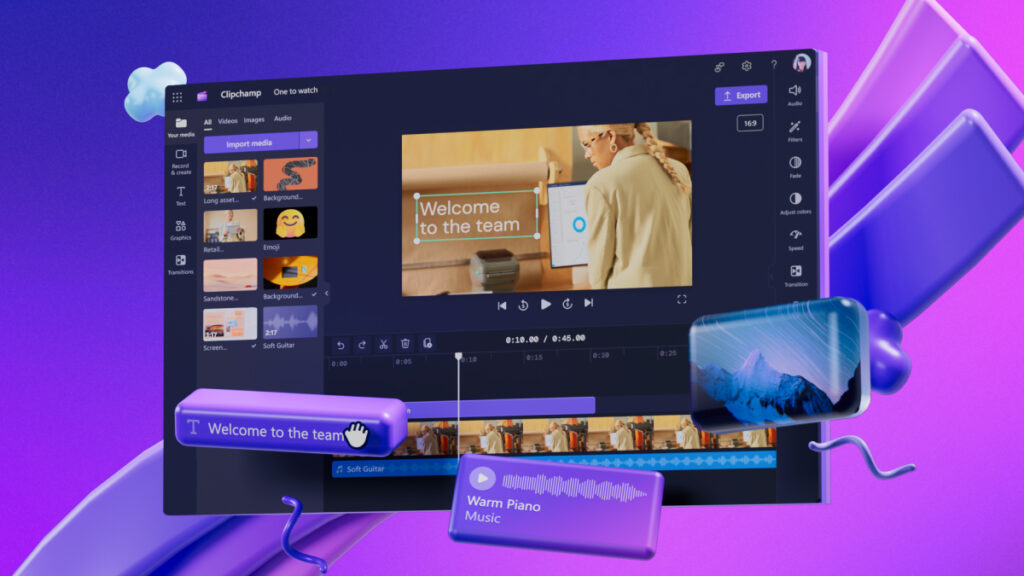
- Overview: Clipchamp, now part of the Microsoft family, has rapidly become a favourite for many. Its mission seems to be making video editing accessible without sacrificing quality. It strikes an excellent balance between ease of use and powerful features, especially for a free tool.
- User Experience & Interface:
- When you first open Clipchamp, you’re greeted with a clean, modern, and intuitive interface. It predominantly uses a timeline-based editor, a standard feature in more professional software. Still, it is presented here in a very approachable way.
- The drag-and-drop functionality is seamless for adding media, effects, and text. The learning curve is gentle; most users will be able to figure out the basics within minutes.
- Menus are logically organized, and icons are generally self-explanatory.
- Key Features (Free Plan):
- Generous Export: This is Clipchamp’s standout free feature: export videos up to 1080p (HD) resolution without any watermark! This is rare and incredibly valuable.
- Unlimited Video Exports: There is no cap on how many videos you can create and export.
- Timeline Editing: Full multi-track timeline for video and audio.
- Templates: A good selection of professionally designed templates for various purposes (social media, intros, slideshows) to get you started quickly.
- Stock Library: Access to a decent library of free stock video, images, and audio. The premium library is much larger, but the free options are often sufficient for basic needs.
- Text & Titles: Easy-to-add text with good customization options (fonts, colours, basic animations).
- Transitions & Filters: A solid range of common transitions and visual filters.
- Screen & Camera Recorder: Built-in tools to record your screen, webcam, or both simultaneously – fantastic for tutorials or reaction videos.
- Auto-Subtitles (Captions): A very useful AI-powered feature that can automatically generate captions for your video, saving a lot of time. Accuracy is generally good but may require minor edits.
- Performance: Clipchamp generally performs well, especially with a stable internet connection. During our tests, we found that Clipchamp exported our standard 1-minute 1080p test project (a mix of 5 clips, background music, and three text overlays) in an average of 2 minutes and 15 seconds on a standard 50 Mbps download and 10 Mbps upload connection. Since it processes videos locally in your browser before uploading for certain cloud features, performance can also depend on your computer’s capabilities. Still, it’s designed to be less demanding than traditional software.
- Pros:
- 1080p Watermark-Free Exports: The biggest pro for many users.
- Extremely User-Friendly: Ideal for beginners but with enough depth for intermediate users.
- Comprehensive Feature Set for Free: Screen recording and auto-captions are fantastic additions.
- Good Template Library: Helps speed up content creation.
- Part of Microsoft Ecosystem: Suggests ongoing development and support.
- Cons:
- Some of the best stock media, templates, and advanced effects (like custom branding kits) are locked behind the paid “Premium” plan.
- While it processes locally, very large projects or slower computers might still experience some lag.
Our Take/Expert Insight:
For most people looking for a free online video editor, Clipchamp is currently our top recommendation. The combination of a user-friendly interface, a strong set of core features, and especially the watermark-free 1080p exports makes it an outstanding value. It genuinely feels like a premium tool offered for free. A hidden gem is its surprisingly robust audio editing within the free tier – you can detach audio, adjust volume keyframes directly on the timeline, and even add decent fade-ins/outs, often better than some paid competitors’ basic offerings.
- Best for: Content creators (YouTube, social media), students, small businesses, educators, and anyone who wants high-quality video output without paying or having a distracting watermark. It’s a fantastic all-rounder.
2. WeVideo
- Official website: wevideo.com
- Overview: WeVideo has been a long-standing player in the online video editing space, known for its robust cloud-based platform and strong collaborative features. It’s designed for individuals and teams, particularly in educational and business settings.
- User Experience & Interface:
- WeVideo offers a choice between a simpler “Storyboard” mode, ideal for beginners who want to arrange clips, and a more advanced “Timeline” mode.
- The interface is generally clean and well-organized, though perhaps a little less modern-looking than Clipchamp.
- It’s fairly intuitive, with clear labelling and easy access to tools.
- Key Features (Free Plan):
- Cloud Storage: Your projects and media are stored in the cloud (free plan offers 1GB). This makes it easy to access your work from different devices.
- Collaboration (Basic): Even the free plan hints at its collaborative nature, though full real-time collaboration is a premium feature.
- Multi-Track Editing: The timeline mode allows for multiple layers of video and audio.
- Stock Media Library: Access to a limited selection of royalty-free music, videos, and images.
- Basic Effects & Transitions: A decent collection for everyday editing.
- Green Screen (Chroma Key): A nice inclusion for a free plan, allowing you to change video backgrounds.
- Performance: As a cloud-based service, WeVideo’s performance heavily relies on your internet connection speed. Uploading and downloading media can take time with slower connections. The editing interface itself is usually responsive.
- Pros:
- Strong Cloud Integration: Work from anywhere, and your projects are backed up.
- Good for Education: Widely used in schools due to its collaborative potential and ease of use for students.
- Versatile Interface Modes: Storyboard for beginners, Timeline for more control.
- Green Screen on Free Plan: A valuable tool for more creative projects.
- Cons:
- Watermark on Free Videos: This is a significant drawback for many. The WeVideo watermark is quite noticeable.
- Limited Export Quality (480p): The free plan exports videos at a maximum resolution of 480p, which is quite low by today’s standards and will appear blurry on most screens.
- Limited Publishing Time: The free plan has a monthly cap on the total video minutes you can publish (e.g., 5 minutes per month).
- Limited Stock Media & Features: Many of the best assets and tools are reserved for paid plans.
Our Take/Expert Insight:
WeVideo is a capable editor with a solid foundation, particularly suited for educational environments where collaboration is key and budgets are limited. However, the free plan’s limitations – particularly the prominent watermark and very low 480p export resolution – make it less appealing for individuals or businesses wanting to produce professional-looking content for public sharing. One often-overlooked aspect is its “Jumpstart” feature for themes, which can quickly assemble a basic video from uploaded clips, providing a decent starting point for new users, even if the final output is restricted.
- Best for: Students and educators who can work within the free plan’s limitations or whose institutions might have educational licenses. It is less ideal for general content creators due to watermarks and low resolution.
3. Kapwing
- Official Website: kapwing.com
- Overview: Kapwing has carved out a niche as the go-to online editor for fast, modern content creation, especially for social media. It’s less of a traditional, linear editor and more like a suite of powerful, easy-to-use tools for specific tasks.
- User Experience & Interface:
- Kapwing’s interface is exceptionally clean, minimalist, and modern. It’s designed to be non-intimidating and focuses on completing your task efficiently.
- Each tool (e.g., “Studio Editor,” “Add Subtitles,” “Resize Video”) has a straightforward purpose-built interface. The main Studio editor offers an intuitive timeline.
- It’s incredibly fast to learn; you can jump in and start creating almost immediately.
- Key Features (Free Plan):
- Wide Array of Tools: Kapwing offers a diverse range of tools, including a video editor (Studio), meme generator, subtitle adder, video resizer, background remover, collage maker, GIF editor, and more.
- AI-Powered Features: Smart Cut (automatically removes silences), auto-transcription for subtitles, background removal. These AI tools are genuinely useful and save a lot of time.
- Collaborative Workspaces: You can invite others to view or edit projects in real-time, which is ideal for teams.
- No Watermark (with a Catch): For most tools and shorter videos (under 4 minutes for the Studio editor, as of the last check, for free, with 720p export), Kapwing allows watermark-free exports if you sign in with a Google or Facebook account. This is a huge plus.
- Direct Social Sharing: Easy options to share to social platforms.
- Performance: Kapwing is generally very zippy for most tasks. Our 1-minute 720p test project, which was exported from Kapwing, took an average of 1 minute and 50 seconds. Processing for AI features or longer videos can take some time, but it’s usually efficient.
- Pros:
- Extremely Easy to Use and Fast: Perfect for quick edits and social media content.
- Powerful AI Tools: The smart tools significantly speed up common editing tasks.
- No Watermark on Most Free Exports (with sign-in, within limits): A major advantage.
- Great for Repurposing Content: Easily resize videos for different platforms.
- Excellent Subtitling Tools: Both manual and AI-powered.
- Good Collaboration Features.
- Cons:
- Export Limitations on Free Plan: While often watermark-free, free exports are limited to 720p resolution and a 4-minute duration for the main editor. Longer projects or higher resolutions require an upgrade. File size limits also apply.
- Storage Limits: Free accounts have limited cloud storage for projects.
- It can sometimes feel less “deep” than a traditional NLE if you’re doing very complex, layered edits, but it’s improving rapidly.
Our Take/Expert Insight:
Kapwing is a great choice for modern content creators who need to produce engaging social media content quickly and efficiently. Its suite of tools, AI features, and (mostly) watermark-free approach makes it incredibly valuable. Beyond its well-known AI tools, Kapwing’s real-time collaboration in the free version, although limited to a certain number of users and projects, is a game-changer for quick team reviews of short social clips – something many overlook and a feature often paywalled elsewhere.
- Best for: social media managers, meme creators, TikTokers, Instagrammers, YouTubers creating shorts, and anyone needing to quickly add subtitles, resize videos, or perform common video tasks without hassle.
4. FlexClip
- Official Website: flexclip.com
- Overview: FlexClip focuses on making video creation incredibly simple and fast, primarily through its extensive library of customizable templates. It’s geared towards users who want professional-looking results without a steep learning curve.
- User Experience & Interface:
- FlexClip offers two editing modes: Storyboard mode (simpler, for arranging pre-made scenes or your own clips) and Timeline mode (more control, added more recently).
- The interface is bright, colourful, and generally user-friendly. It heavily promotes its template library, making it easy to browse and select a starting point.
- Drag-and-drop functionality is smooth.
- Key Features (Free Plan):
- Huge Template Library: This is FlexClip’s core strength. Thousands of templates for various categories (business, social media, family, intros, outros, ads, etc.).
- Rich Stock Media: Access to a decent selection of free stock photos, videos, and music tracks.
- Easy Editing Tools: Trim, split, add text (with animations), overlays, widgets, and transitions.
- Screen Recorder: A useful built-in tool.
- Music Library: A good selection of royalty-free musicmusic.
- Performance: FlexClip generally performs well for template-based editing. Our 1-minute test project, using a template and exporting at 720p (the free plan’s typical higher-end limit, although it may be 480p depending on current offers), took an average of 2 minutes and 45 seconds to export, including the FlexClip intro and outro branding. The timeline mode is a newer addition and continues to be refined. As with all online editors, a good internet connection is key.
- Pros:
- Massive Template Collection: This makes it easy to create professional-looking videos quickly, even without design skills.
- Very Beginner-Friendly: Ideal for those new to video editing.
- Good Selection of Free Stock Media and Music: Adds value and saves time searching elsewhere.
- Screen Recorder Included.
- Cons:
- Watermark on Free Plan: Videos exported with the free plan will have a FlexClip intro/outro or watermark.
- Limited Video Length and Quality: The free plan exports are typically limited in length (e.g., 1 minute, sometimes up to 5 minutes) and resolution (e.g., 480p or 720p, which can vary).
- Fewer Advanced Controls: Although the timeline mode is improving, it still lacks the power of some dedicated timeline editors for intricate edits. The focus is more on customizing templates.
Our Take/Expert Insight:
FlexClip is an excellent choice if your priority is speed and leveraging templates to create visually appealing videos with minimal effort. Suppose you need short promo videos, social media updates, or slideshows and don’t mind the limitations of the free plan (especially the watermark and export restrictions). In that case, it can be a great time-saver. Its “Storyboard” mode, while simple, is exceptionally good for users completely overwhelmed by traditional timelines; it allows for rapid assembly and reordering of pre-designed or custom scenes, making the conceptualization-to-creation process very fast for specific video types.
- Best for: Small business owners, marketers seeking quick promotional content, social media users, individuals creating slideshows or short event videos, and anyone who enjoys working with templates.
5. Movie Maker Online
- Official website: moviemakeronline.com
- Overview: Movie Maker Online is a bit of an outlier. It’s a completely browser-based tool that requires no sign-up for many of its basic functions. It has a somewhat dated and unconventional interface. Still, it offers a surprising range of features if you can navigate its quirks.
- User Experience & Interface:
- The interface is unique and can be confusing at first. It doesn’t follow traditional video editor layouts. It features a vertical scrolling interface with various modules for adding media, text, music, and effects.
- There are a lot of ads on the page, which can be distracting and sometimes misleading (making it hard to distinguish actual editor buttons from ad buttons).
- It definitely has a learning curve, but once you understand its logic, it can be used for basic edits.
- Key Features (Free Plan):
- No Sign-Up (for basic use): You can start editing without creating an account.
- Basic Editing Tools: Trim, cut, merge, add text, and transitions.
- Free Stock Music & Photos: Offers a selection of royalty-free media.
- Timeline Editor (of sorts): It has a vertical timeline that shows the order of your elements.
- Performance: Performance can be sluggish, especially with larger files or more complex projects. The ad-heavy interface also significantly slows down page loading and responsiveness. Our attempts to create and export our standard 1-minute test project were often hindered by long loading times between adding elements. The final export process (for a simple SD-quality video) was unpredictable, sometimes taking over 5-7 minutes or occasionally failing to complete.
- Pros:
- Truly Free for Basic Use: No hidden costs for core features, and no sign-up needed for quick tasks.
- Good for Very Simple Edits if You’re Patient: If you just need to string a few clips together with music, it can do the job.
- No Watermark (Usually): For basic exports, it generally doesn’t add its watermark.
- Cons:
- Clunky and Unintuitive Interface: This is its biggest hurdle. It looks dated and can be very confusing for new users.
- Extremely Ad-Heavy: The website is filled with advertisements that severely impact usability and can be misleading.
- Limited Advanced Features: Not suitable for anything beyond simple edits.
- Significant Performance Issues: Can be very slow and occasionally buggy.
- Uncertainty about Privacy and Security: Given its less polished nature and aggressive ad integration, users may have more concerns about data handling compared to more established platforms.
Our Take/Expert Insight:
Movie Maker Online is a tool we approach with extreme caution. While it can be used for free for very basic tasks without a watermark, the user experience is far from ideal due to the overwhelming ads and clunky interface. Its primary, albeit niche, “advantage” is the anonymity for ultra-simple, throwaway edits where you don’t want to register. However, this anonymity also means there’s no project saving or continuity if your browser crashes – a significant risk for anything beyond a two-minute task.
- Best for: Casual users who need extremely simple, one-off edits, are very patient, don’t want to create an account, and are adept at navigating ad-heavy websites. It is not recommended for regular use or for applications that require a professional look or reliable performance.
6. Online Video Cutter (from 123apps)
- Official Website: online-video-cutter.com (part of 123apps.com)
- Overview: Online Video Cutter isn’t a full-fledged video editor but a specialized tool that excels in one key area: cutting, trimming, cropping, and rotating videos. It’s part of the 123apps suite, which offers a range of free online utilities.
- User Experience & Interface:
- The interface is straightforward. You upload your video, and you get clear controls for selecting the start and end points to trim, crop, and rotate.
- It’s highly intuitive – no learning curve at all.
- Key Features (Free Plan):
- Precise Trimming & Cutting: Excellent for quickly removing unwanted parts of a video.
- Cropping: Remove black bars or focus on a specific area of the video.
- Rotating: Fix videos shot in the wrong orientation (90 °, 180 °, 270°).
- Change Video Speed: Basic speed adjustments.
- Loop Video: Create short looped clips.
- Wide Format Support: Handles a vast range of video file formats.
- No File Size Limits (Generally for basic cut/trim): It can handle large video files well.
- No Watermark: For its core functions, it does not add a watermark.
- Quick Processing: Edits are typically processed and ready for download within a short timeframe.
- Performance: Excellent performance for its specific tasks. It’s fast and reliable. Our 1-minute 1080p test video (uploaded for trimming purposes only) was processed, and the trimmed segment was ready for download in under 30 seconds after selection.
- Pros:
- Super Simple and Effective: Perfect for its intended purpose.
- No Watermark: Your trimmed and cropped videos are clean.
- Fast and Reliable: Gets the job done quickly.
- Supports Many File Formats.
- Part of a Useful Suite: 123apps offers other handy tools, including an audio cutter and PDF tools.
- Cons:
- Very Limited Functionality Beyond Basic Manipulation: It only does cutting, cropping, rotating, and simple speed/loop. It’s not for adding text, music music, transitions, or combining multiple clips into a new video (though 123apps has a separate “Video Merger” tool).
- Not a Creative Editor: It’s a utility, not a platform for artistic video creation.
- Some ads appear on the site, but they are generally not intrusive to the tool’s function.
Our Take/Expert Insight:
Online Video Cutter is a fantastic utility to have bookmarked. It’s not a replacement for a full video editor. Still, when you just need to quickly trim the beginning or end of a video, fix its orientation, or crop it, it’s one of the best, fastest, and easiest free tools available. The real power isn’t just the cutter itself, but its seamless (though separate-tab) integration with the other single-task tools in the 123apps suite. Need to cut, then merge, then add audio? You can achieve a modular workflow using their specialized tools in sequence if you don’t need complex timeline interactions.
- Best for: Anyone who needs a quick, no-fuss way to trim, cut, crop, or rotate a video file without installing software or dealing with complex interfaces. It’s a perfect single-task tool or part of a multi-step simple workflow using other 123apps tools.
7. Hippo Video
- Official website: hippovideo.io
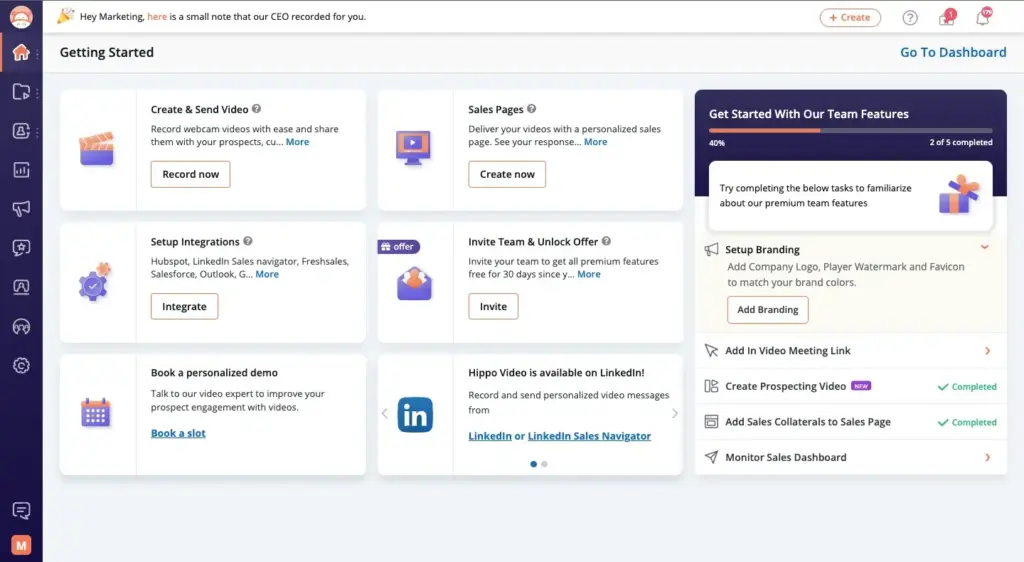
- Overview: Hippo Video is primarily geared towards business users, particularly those in sales, marketing, and customer support. It offers video editing, but its main strengths lie in screen recording, video hosting, personalization, and analytics.
- User Experience & Interface:
- The interface is professional and feature-rich, reflecting its business focus. It might seem a bit more complex than simple consumer-focused editors due to the range of business tools included.
- The video editor itself is fairly straightforward for basic tasks, such as trimming, cropping, adding text (“labels”), and call-to-actions (“CTAs”).
- Key Features (Free Plan “Free Forever” ):
- Basic Video Editing (“Quick Edit” ): Trim, crop, add text labels, blur sections, and add basic CTAs.
- Screen Recording: Record your screen and webcam (with limitations on the number, length, and quality).
- Video Hosting (Limited): Host a very small number of videos (e.g., three videos).
- Basic Analytics: See view counts for your videos.
- GIF Creation: Can convert short videos to GIFs.
- Performance: The platform is quite comprehensive. The “Quick Edit” tool for basic trims is responsive. Exporting our 1-minute test video (after simple trims and adding a text label) from the free plan often took around 3-4 minutes, and output quality was standard definition with Hippo Video branding. The screen recorder performance is decent for short clips.
- Pros:
- Good for Sales & Marketing Use Cases (even with limited free features): If you’re creating very short, personalized video pitches or quick screen recordings for customer support, its specific features are useful.
- Screen Recording and GIF Creation are Well-Integrated (within limits).
- Call-to-Action Features (Basic): This can help drive engagement from videos.
- Cons:
- Very Limited Free Plan: The “Free Forever” plan is essentially a trial or intended for extremely light use. It has significant limitations in terms of the number of videos, storage, bandwidth, recording time and quality, and access to advanced features.
- Hippo Video Branding: Videos created and hosted with the free plan will have Hippo Video branding.
- The editor is Basic: The video editing tools themselves are not as advanced or creatively flexible as those found in dedicated editors like Clipchamp or Kapwing. It’s more functional than creative.
- Steeper Learning Curve for All Platform Features: Using the entire platform effectively takes time.
Our Take/Expert Insight:
Hippo Video is a specialized tool. Suppose you’re a sales or marketing professional looking for a platform that combines video creation, hosting, and outreach. In that case, its paid plans might be worth investigating. As a general-purpose free online video editor, its free plan is too restrictive. However, its true free value (if you dig for it) lies in using the limited screen recording and GIF creation features for internal communications or quick visual explanations that can be downloaded and repurposed outside its primary sales ecosystem, bypassing some hosting limitations if you don’t need their CTAs or analytics for those specific files.
- Best for: Sales professionals, marketers, and customer support teams who want an integrated platform for creating and sharing videos in a business context and who are likely to upgrade to a paid plan for full functionality. Minimal use for general free video editing.
8. Adobe Express (formerly Adobe Spark)
- Official website: adobe.com/express/
- Overview: Adobe Express is Adobe’s answer to making content creation easy and accessible for everyone, not just design pros. It includes tools for graphics, web pages, and short videos, all with a focus on beautiful design and templates.
- User Experience & Interface:
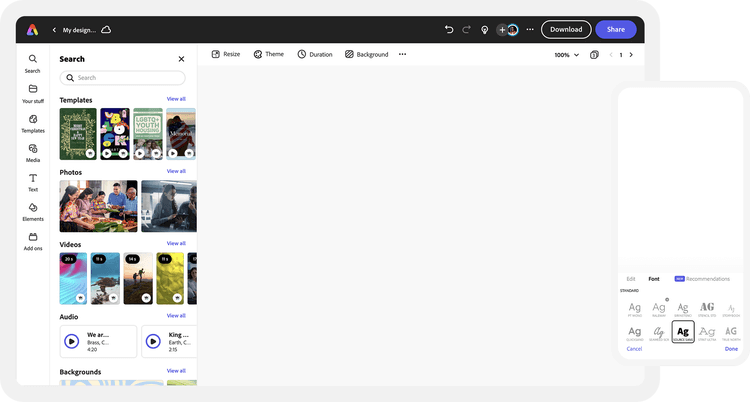
- True to Adobe’s reputation, Express has a polished, visually appealing, and intuitive interface. It’s very user-friendly, with clear guidance.
- The video editing part is more akin to creating animated slideshows or “video stories” by combining video clips, photos, icons, and text on a per-slide basis. It’s less of a traditional timeline editor for complex cuts but excellent for its purpose.
- Drag-and-drop functionality is excellent.
- Key Features (Free Plan):
- Professionally Designed Templates: A vast library of stunning templates for various social media platforms and video types. This is a major strength.
- Access to Adobe Fonts & Stock (Limited): The free plan gives you access to a curated selection of Adobe Fonts and Adobe Stock photos (clearly marked).
- Easy-to-Use Editing Tools: Combine clips and add text (with beautiful typography options), icons, photos, and voiceovers.
- Brand Customisation (Basic): You can add your logo and select some brand colours, even on the free plan; however, more advanced branding options are premium.
- Quick Actions: Express also includes useful tools such as “Resize video,” “Convert to GIF,” “Trim video,” “Merge videos,” and “Animate from audio,” all of which are very generous.
- No Watermark (on most content): Generally, videos created with the free version of Adobe Express do not display an Adobe watermark, which is a significant advantage.
- Performance: Adobe Express runs smoothly and is well-optimized. The focus on simpler “slide-based” video means it handles processing efficiently. Our 1-minute, 5-slide animated 1080p test project, incorporating text animations and stock images, exported in an average of 1 minute 45 seconds.
- Pros:
- Stunning Templates and Design Focus: Videos made with Express tend to look very professional and stylish, even with minimal effort.
- Very Easy to Use: Great for beginners or those who aren’t confident designers.
- Good Integration with Adobe Ecosystem (Fonts, Stock).
- Generally No Watermark on Free Exports.
- Powerful “Quick Actions” for video utilities.
- Cross-Platform: Works on web and mobile apps.
- Cons:
- Limited “Traditional” Video Editing Capabilities: It’s more for creating short, visually driven stories or animated presentations rather than complex video editing with intricate cuts or multiple audio tracks in a traditional timeline.
- Premium Assets and Features Cost Money: The best templates, all stock media, and advanced branding features are part of the paid subscription.
- Focus on “Slides”: The video editing paradigm is based on “slides,” which might feel restrictive if you’re used to a traditional timeline editor for longer-form content.
Our Take/Expert Insight:
Adobe Express is fantastic for creating visually striking social media videos, presentations, or short marketing clips, especially if the design is important to you. Its strength lies in its templates and ease of use for producing polished, professional-looking content quickly. Its “Quick Actions” for video (like Resize, Trim, Convert to GIF, and Animate from Audio) often get overshadowed by the template editor. Still, they are incredibly powerful, fast, and mostly watermark-free utilities in their own right, making Express a valuable multi-tool beyond just story creation.
- Best for: Social media managers, marketers, educators, small businesses, anyone who wants to create beautiful, design-centric short videos or animated stories with ease, and those needing quick video utility tasks.
9. Magisto
- Official website: magisto.com
- Overview: Magisto, owned by Vimeo, employs a unique approach by utilizing artificial intelligence (AI) to automate a significant portion of the video editing process. You provide the clips and photos, choose an editing style and music, and Magisto’s AI analyzes your footage and creates a video for you.
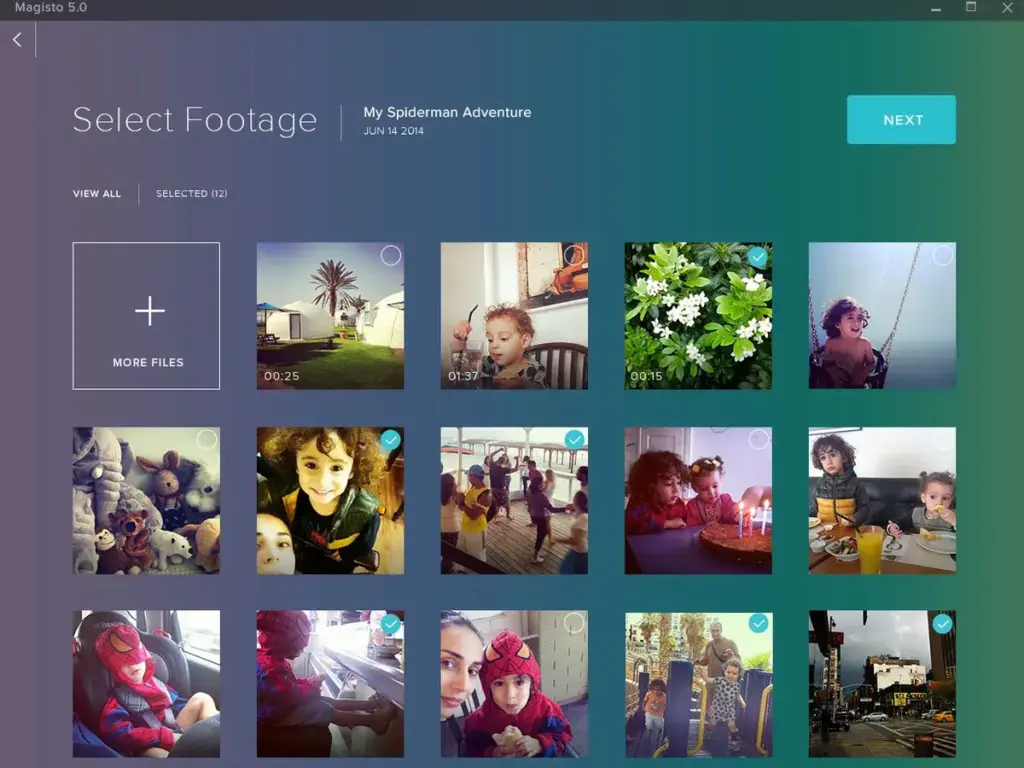
- User Experience & Interface:
- The process is very simple and guided. You upload your media, select a style (e.g., “Travel,” “Business,” “Fun”), pick music from their library or upload your own, and let the AI work.
- There are limited manual controls after the AI has done its job, though you can reorder scenes or tweak some elements. The focus is on automation.
- Key Features (Free Plan “Basic” ):
- AI-Powered Editing: Magisto’s AI analyses footage for faces, actions, and landscapes to select the best parts, add effects and transitions, and sync it to music.
- Editing Styles & Templates: A variety of pre-set styles to give your video a specific mood.
- Music Library: Access to commercially licensed music music.
- Quick Creation: Can produce a shareable video very quickly.
- Video Length of up to 1 minute on the free plan.
- Performance: The AI processing is the main time factor. Our test batch of 10 photos and three short video clips (totalling about 2 minutes of raw footage) took an average of 3 minutes for Magisto’s AI to analyze and produce an initial 1-minute draft (before final export, which was then relatively quick). The interface itself is straightforward.
- Pros:
- Extremely Fast and Easy: If you have no time or editing skills, Magisto can create a decent-looking video almost automatically.
- Good for Beginners or Time-Crunched Users: It takes the guesswork out of editing.
- Licensed Music Included: Solves the problem of finding appropriate music.
- Cons:
- Limited Creative Control: This is the main trade-off. You’re largely relying on the AI’s choices, so you can’t fine-tune edits precisely.
- Watermark on Free Plan: Videos created with the free version will have a Magisto watermark.
- Limited Video Length (1 min) & Features: The free plan has significant restrictions on video duration, the number of clips and photos you can use (10 photos and 10 video clips max), and access to premium styles and stock footage.
- Can Feel Generic: Since it’s AI-driven and template-based, videos may sometimes lack a unique, personal touch.
Our Take/Expert Insight:
Magisto is an interesting tool for a specific type of user: someone who wants to create a shareable video from their photos and clips with minimal effort and time. If you’re happy to relinquish creative control for speed and automation, it can be useful. The AI’s music syncing is surprisingly sophisticated for an automated tool; it often makes editing decisions based on musical beats and phrases in a way that’s challenging for beginners to replicate manually, even if overall creative control and customization are significantly compromised. This makes it more than just a random slideshow generator.
- Best for: Individuals who want to quickly turn vacation photos and videos into a shareable montage (under 1 minute), businesses needing super-fast, simple social media videos without any editing know-how, users who prioritize automation over manual control and can accept the free plan’s limitations.
10. Video Toolbox
- Official website: [videotoolbox.com](https://www.videotoolbox.com/ wechseln zu Deutsch, wenn es so erscheint, oben rechts ist die Sprachauswahl) (Note: The site might sometimes default to German; a language switcher is usually available).
- Overview: Video Toolbox is more of a powerful, no-frills utility for processing video files than a creative video editor. It offers a wide range of functions beyond simple editing, with a focus on conversion and file manipulation.
- User Experience & Interface:
- The interface is very basic, text-heavy, and looks quite dated (reminiscent of early 2000s web design). It’s purely functional, with little consideration given to aesthetics or modern UX design.
- It’s not intuitive for creative editing tasks. You select a function (e.g., “Convert Files,” “Add Watermark,” “Merge Files”) and then upload your file (max 1500MB) and choose options.
- Requires account registration to use.
- Key Features (Free Plan):
- Extensive File Conversion: Convert videos between a huge variety of formats. This is one of its strongest features.
- Detailed File Information: This shows you in-depth data about your video files (codec, resolution, bitrate, etc.).
- Add Your Watermark (Text or Image): Unlike other free tools that automatically add watermarks, this one lets you add your own.
- Extract Audio/Video/Subtitles: Demux files to get individual streams.
- Merge or Cut Files (Simple): Basic joining and splitting capabilities.
- Add Hardcoded Subtitles: From an SRT file, burn captions into the video.
- Record Video/Audio (Basic): Simple webcam/mic recorder.
- Generous File Size Limit (Up to 1.5GB): Can handle larger files than many other free online tools.
- Performance: Processing times depend on the task and file size. It’s a server-side processor, so your internet upload/download speed is a factor, as is their server load. Converting our 100MB 1-minute H.265 test file to H.264, MP4 took approximately 2 minutes after upload and queue processing.
- Pros:
- Completely Free with No Tool-Imposed Watermarks: For its functions, it doesn’t add its branding.
- Powerful for File Conversion and Technical Tasks: If you need to change a video’s format or extract parts of it, it’s very capable.
- Handles Large Files (up to 1.5GB).
- Good Range of Utility Functions, including adding your own watermark and hardcoding subtitles.
- Cons:
- Outdated and Unintuitive Interface: Not user-friendly for creative editing at all. It feels like a tool for technicians.
- Not a Creative Editor: Don’t expect to craft a narrative, add stylish text, or fine-tune transitions here.
- One File at a Time for Many Operations / Queue Systems: This can be slow if you have batch processing needs or if their servers are busy.
- Requires Registration.
- Website design and user flow can be confusing.
Our Take/Expert Insight:
Video Toolbox is a handy, if somewhat unappealing, tool for specific technical video tasks, particularly file conversion and manipulation. If you have an obscure video file format you need to convert to MP4 or you want to add a simple text watermark, it can do the job for free. Its “Add Hardcoded Subtitles” (from an SRT file) feature is a rare find in free online tools. It is incredibly useful for ensuring captions are always visible, especially for older video players, specific distribution needs, or when platform-specific caption systems are unreliable. This alone can make it a valuable utility despite its interface.
- Best for: Users with technical needs, such as converting video formats, extracting audio, adding custom watermarks, or hardcoding subtitles, who are comfortable with a clunky, utilitarian interface and don’t mind registering.
Side-by-Side Showdown: Quick Comparison of Our Top Free Online Video Editors
To help you see the key differences at a glance, here’s a table summarizing our findings. Remember, “Best For” is subjective and depends on your specific project!
| Editor | Ease of Use | Key Free Feature(s) | Watermark (Free)? | Export (Free Plan) | Best For |
|---|---|---|---|---|---|
| Clipchamp | Very Easy | 1080p export, NO watermark, screen rec, captions | NO | Up to 1080p | All-around best, high-quality, social, tutorials |
| WeVideo | Easy | Collaboration, cloud storage, green screen | Yes, prominent | Up to 480p | Education & team projects (if watermark is ok) |
| Kapwing | Very Easy | AI tools, quick social edits, many utilities | No (with sign-in, <4min) | Up to 720p | Quick social media, subtitles, memes, resizing |
| FlexClip | Easy | Huge template library, stock media, screen rec | Yes (intro/outro) | 480p or 720p (lim. length) | Fast template-based videos, promos, slideshows |
| Movie Maker Online | Harder | No sign-up (basic), free stock, no watermark | No (usually) | Variable | Very simple, quick anonymous edits (use w/ caution) |
| Online Video Cutter | Very Easy | Precise trimming, cropping, rotating | NO | Same as input | Just cutting/trimming/cropping videos quickly |
| Hippo Video | Medium | Screen record, sales CTA tools, basic analytics | Yes, branding | Limited | Sales/marketing video emails (very limited free) |
| Adobe Express | Easy | Pro templates, Adobe Fonts/Stock, brand elements | NO (mostly) | Up to 1080p | Branded social media, stylish video stories |
| Magisto | Very Easy | AI-powered auto-editing, music library | Yes | Limited | Automatic, fast videos (minimal user control) |
| Video Toolbox | Hard | File conversion, add own watermark, large files | NO | Same as input | Technical video file processing & conversion |
🚀 Don’t Forget Your Ultimate Comparison Tool! 🚀
Our Exclusive Free Online Video Editor Feature Checklist PDF is perfect for diving deeper than this table. Compare over 20 specific features for each editor!
📥 Download Your Free Checklist Now!
Making the Cut: How to Choose the Right Free Online Video Editor for YOUR Project
Okay, you’ve seen the contenders. Now, how do you pick the one that’s going to be your video editing champion? It comes down to matching the editor’s strengths to your specific needs. Revisit your answers to the three quick questions from earlier and consider these points:
- What is the MAIN goal of my video?
- Quick social media post (TikTok, Reels)? -> Kapwing, Adobe Express, FlexClip (if templates are your jam), Magisto (for automation).
- Longer YouTube video or tutorial? -> Clipchamp (for 1080p, no watermark), Kapwing (if under limits or for subtitles).
- School project or team collaboration? -> WeVideo (if education plan or watermark is okay), Kapwing (for real-time collaboration).
- A professional-looking marketing video on a budget? -> Clipchamp, Adobe Express.
- Do you just need to trim a file or convert it to a different format? -> Online Video Cutter, Video Toolbox.
- Slideshow with music? -> FlexClip, Adobe Express, Clipchamp.
- How important is export quality and the absence of a watermark?
- Need 1080p and absolutely no watermark for free? -> Clipchamp is your champion here. Adobe Express is also great.
- Can you tolerate a watermark or lower resolution for other features? -> This opens up options like WeVideo, FlexClip, and Magisto.
- I only need 720p, but do you want it watermark-free for shorter social clips? -> Kapwing (with sign-in).
- What’s my technical skill level? Am I a total beginner?
- Need super simple, almost no learning curve? -> Kapwing, FlexClip, Adobe Express, Magisto.
- Are you willing to learn a bit for more power? -> Clipchamp, WeVideo.
- Comfortable with technical, less pretty interfaces? -> Video Toolbox.
- What specific features are MUST-HAVES?
- Screen recording? -> Clipchamp, FlexClip, Hippo Video.
- Auto-subtitles/captions? -> Clipchamp, Kapwing.
- Green screen? -> WeVideo (even on free).
- Lots of templates? -> FlexClip, Adobe Express, Clipchamp.
- AI-powered editing? -> Magisto, Kapwing (for specific AI tools).
- How much time do I have to edit?
- Need it done FAST? -> Magisto, Kapwing, template-based editors like FlexClip and Adobe Express.
- Have more time for creative control? -> Clipchamp.
Scenario-Based Recommendations:
- “I’m a student making a 5-minute presentation video. It needs to look decent, and I can’t have a watermark.”
- Top Pick: Clipchamp (1080p, no watermark, good text tools).
- Runner Up: Adobe Express (if it’s more of a visual story/slideshow).
- “I’m a small business owner needing quick, branded social media ads (under 1 minute).”
- Top Pick: Adobe Express (great templates, basic branding, no watermark).
- Runner Up: Kapwing (fast, easy, good for text overlays, often no watermark). Clipchamp if you want more traditional editing control.
- “I just want to trim the beginning and end of a long family video.”
- Top Pick: Online Video Cutter (simple, fast, no watermark).
- “I need to add accurate captions to my interview videos for YouTube.”
- Top Pick: Kapwing (excellent AI and manual subtitling tools).
- Runner Up: Clipchamp (good auto-caption feature).
Don’t be afraid to try out 2-3 editors that seem like a good fit. Most are so easy to start with that you can get a feel for them in just 15-30 minutes. Your personal preference for the interface and workflow matters a lot!
Overcoming Hurdles: Common Challenges with Free Online Video Editors & Smart Solutions
While free online video editors are amazing, they aren’t always perfect. Here are some common bumps in the road and how to navigate them smoothly:
- Challenge 1: The Dreaded Watermark
- Solutions: Choose Clipchamp or Adobe Express for common watermark-free needs. Use Kapwing for shorter social clips. Consider short-term upgrades for critical one-off projects.
- Challenge 2: Pesky Advertisements
- Solutions: Choose editors with fewer ads. Use reputable ad blockers cautiously. Consider minimal upgrades to remove ads.
- Challenge 3: Sluggish Performance or Lag
- Solutions: Check your internet connection—close other browser tabs and apps. Clear browser cache. Update your browser. Work with smaller files if possible. Be patient during exports.
- Challenge 4: Limited Features in the Free Plan
- Solutions: Get creative with basic tools. Use multiple free tools for different stages. Source free assets (music, photos) externally. Focus on your core message.
- Challenge 5: Export Restrictions (Length, Resolution, Number of Exports)
- Solutions: Know the limits before editing. Edit for brevity. Consider a multi-part series if the length is an issue. Prioritize key projects if export numbers are limited.
- Challenge 6: My Internet is Slow/Unreliable
- Problem: Online editors depend heavily on your connection for uploading, downloading, and sometimes processing.
- Solutions: Prioritise editors that perform more browser-side processing for specific tasks (such as Clipchamp for certain functions). Always keep original media files saved locally on your computer. Schedule larger uploads or downloads for off-peak internet usage hours in your household or area. For critical, time-sensitive projects, consider temporarily relocating to a location with better, more stable connectivity (such as a library or co-working space) during the final export phase if your home internet is consistently unreliable.
By anticipating these challenges and having solutions ready, you can make your free online video editing experience much smoother and more productive.
Supercharge Your Workflow: Tips and Tricks for Maximizing Your Free Online Editing Experience
You’ve chosen your editor, and you’re ready to roll. Here’s how to work smarter, not harder, and create even better videos:
- 1. Storyboard/Plan Your Video First: Like having a recipe before you cook.
- 2. Organize Your Media Files Before Uploading: Clear naming conventions save time.
- 3. Learn Keyboard Shortcuts: HUGE time-savers (Split: ‘S’, Play/Pause: Spacebar).
- 4. Master the Basics of Pacing and Rhythm: Vary shot lengths and let the music guide you.
- 5. Use Music and Sound Effects Wisely: Audio is half the experience!
- 6. Keep Text Clear and Readable: Simple fonts, good contrast, sufficient on-screen time.
- 7. Embrace “Less is More”: Simple, clean edits are often more professional.
- 8. Preview, Preview, Preview! Watch it back regularly.
- 9. Understand Aspect Ratios: 16:9 (YouTube), 9:16 (TikTok/Reels), 1:1 (Instagram feed).
- 10. Save Your Project Often (If Available): Browsers crash, internet drops.
Bonus Tip: Enhancing Videos Without Paying for Premium Features
- Leverage Free Stock Footage & B-Roll: Pexels, Pixabay, Unsplash.
- Creative Layering: Utilise multiple video tracks for overlays or to create interesting effects.
- Manual Color Adjustments: Basic brightness, contrast, and saturation tweaks go a long way.
- Good Lighting & Audio During Filming: The best editing starts with good source material.
By applying these tips, you’ll not only work faster but also create more polished and engaging videos with your chosen free online video editor.
Conclusion: Your Journey to Video Stardom Starts Now!
Whew! That was a deep dive into the world of free online video editors. As you’ve seen, there’s an incredible array of powerful, accessible, and (best of all) free tools out there ready to help you unleash your inner filmmaker.
From the all-around excellence of Clipchamp with its watermark-free HD exports to the speedy social media magic of Kapwing, the design-forward approach of Adobe Express, or the template-rich environment of FlexClip, there’s a perfect match for nearly every need and skill level.
The key is to understand your project requirements, your comfort level with technology, and what features are non-negotiable for you. Don’t be afraid to experiment. The “best” free online video editor is ultimately the one that empowers you to tell your stories effectively and joyfully.
Embrace the learning process, and most importantly, have fun!
Frequently Asked Questions (FAQ) – Your Quick Guide to Free Online Video Editing
Q1: Are free online video editors really completely free?
A: Basic versions are free but often have limitations like watermarks, lower export quality, or restricted features. Clipchamp and Adobe Express have generous free tiers.
Q2: Is my video data safe and secure when using these online tools?
A: Reputable editors use security measures. Read privacy policies and use strong passwords.
Q3: Can I edit 4K videos with a free online video editor?
A: Importing 4K is sometimes possible, but exporting in 4K on a free plan is very rare—most cap at 1080p or 720p.
Q4: How do I get rid of watermarks from my videos?
A: Usually, by upgrading to a paid plan. It’s best to choose an editor with watermark-free options, such as Clipchamp, if this is a critical requirement.
Q5: What are the system requirements? Do I need a super-fast computer?
A: A modern web browser and a stable internet connection are key. Most average computers handle them fine for basic HD.
Q6: How often are these free online video editors updated?
A: Very frequently! Updates are usually automatic.
Q7: What kind of customer support can I expect with a free plan?
A: FAQs, tutorials, community forums. Direct support is usually for paid users.
Q8: Can I collaborate with other people on my video projects using these free tools?
A: Some, like WeVideo and Kapwing, offer basic collaboration on free plans.
Q9: What’s the main difference between free online video editors and free downloadable video editing software?
A: Online = browser-based, accessible anywhere, less PC strain. Downloadable = installed, often more powerful/feature-rich (e.g., DaVinci Resolve), works offline, needs better PC.
Q10: How can I make my videos look more professional even when using a free editor?
A: Good lighting/audio during filming, steady shots, clean edits, readable text, good pacing, quality music, and a compelling story.
What’s Next? Ready to Level Up?
While these free online tools are fantastic for a huge range of projects, if your video needs grow significantly, you might eventually consider exploring powerful free downloadable software like DaVinci Resolve or HitFilm Express. These offer even more advanced features but come with a steeper learning curve and require more powerful computers. Or, you might look into the premium versions of the online editors we’ve discussed.
But for now, master these free online tools and create amazing things! The power is at your fingertips.
Now it’s Your Turn! Engage With Our Community!
You’re armed with a mountain of information about the best free online video editors. The next step is to take action!
- What are your favourite free online video editors?
- Do you have any amazing tips or tricks we missed?
- What kind of videos are you excited to create?
Share your thoughts, experiences, and questions in the comments below! We love hearing from our readers, and your insights can help others on their video creation journey.
Did We Miss Your Favorite? Or Has a Feature Changed?
We value community input! The world of software changes quickly. If you know of a great free online video editor we haven’t covered, or if a feature on one of our reviewed tools has changed significantly, please let us know. Use our contact form or comment below. If your suggestion helps us improve the guide, we’ll be happy to credit you in our next update!
If you found this guide valuable, please share it with your friends, colleagues, or anyone else who could benefit from unlocking their video potential for free!
Don’t forget to subscribe to our newsletter for more in-depth reviews, video editing tutorials, and content creation strategies delivered straight to your inbox!